X-Plane 12 can simulate both ice accumulation and window de-ice effects as well as rain drop/wiper visual effects on aircraft window surfaces. This article explains how to implement icing visual effects only. Rain effects are discussed in its own dedicated article, “Windshield Rain Effects”. This article assumes you are familiar with:
💡 NOTE: X-Plane 12.1+ introduces significant changes to the windshield ice and heat simulation from previous versions, which had many problems. Any RainGlass OBJs previously configured with THERMAL sources, and exporting from XP2B V4.3+ using an export target version prior to 12.1 will NOT have window heat functionality. The exporting of the legacy THERMAL_source directive have been removed for all XP version options prior to 12.1.
If you have exported out RainGlass OBJs with XP2B 4.3+ to support XP targets < 12.1, yet still desire to use the legacy THERMAL_source directive, then you will need to manually edit the OBJ and enter the directive and its parameters by hand. This directive and parameters are described further below for reference.
Enabling Ice Effects
Ice effects are automatically included on any window OBJs configured for Rain Effects. See the Rain Effects document for more info if you haven’t set up your RainGlass OBJs yet. When the conditions warrant, and in the absence of any window heat, the window will begin icing over uniformly at a rate dependent upon the conditions. X-Plane’s icing algorithm considers temperature, moisture, airflow and heating when calculating ice accumulation on RainGlass OBJs.
Icing Inspector Tool
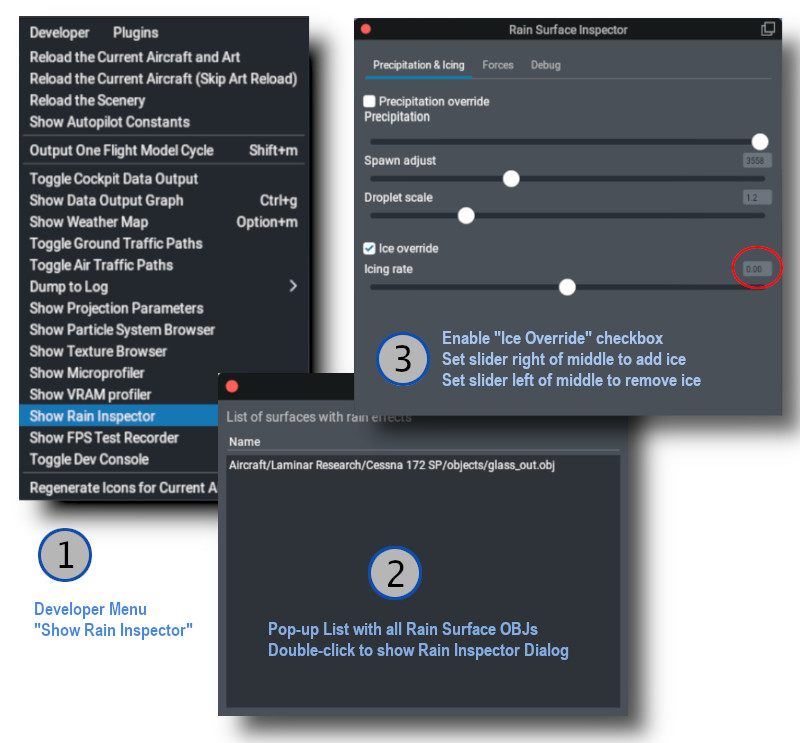
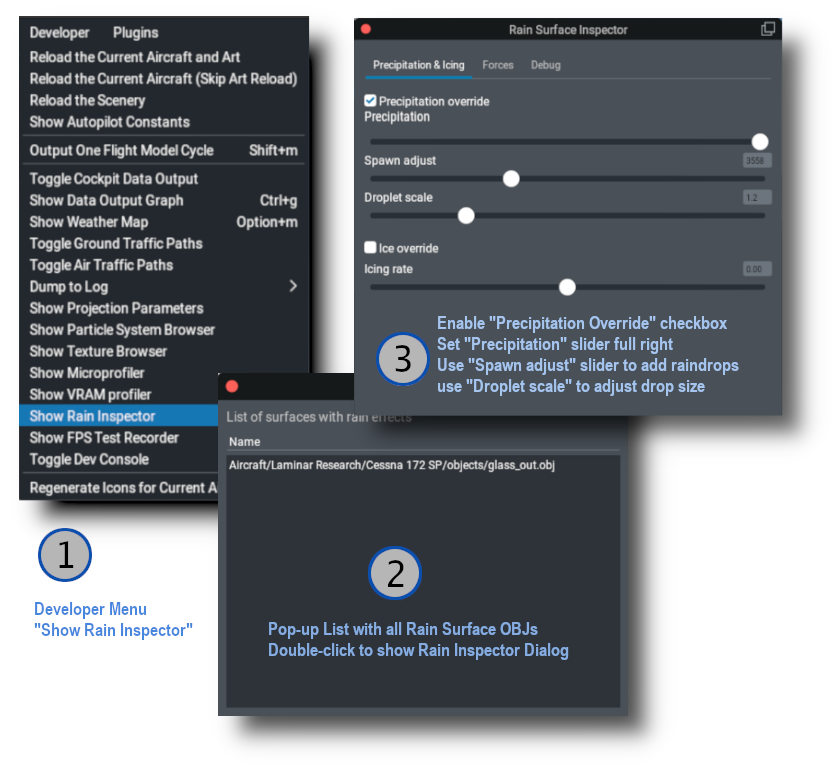
The same tool that is used to debug / inspect Rain Effects is also used to debug / inspect icing effects, so you don’t have to configure X-Plane’s weather to test your work. The image below shows the sequence for use.
💡 NOTE: For the “Icing Rate” slider. The middle position is 0 (red circle below). The right side of the slider adds ice and the left side of the slider will remove ice. If you are wanting to test your thermal texture deicing effects quickly, you will probably want to move the slider to the right to add ice, and then return it to the middle zero position and then activate the window de-ice system to observe the effects of your thermal gradient texture.
Thermal Sources Gradient Texture
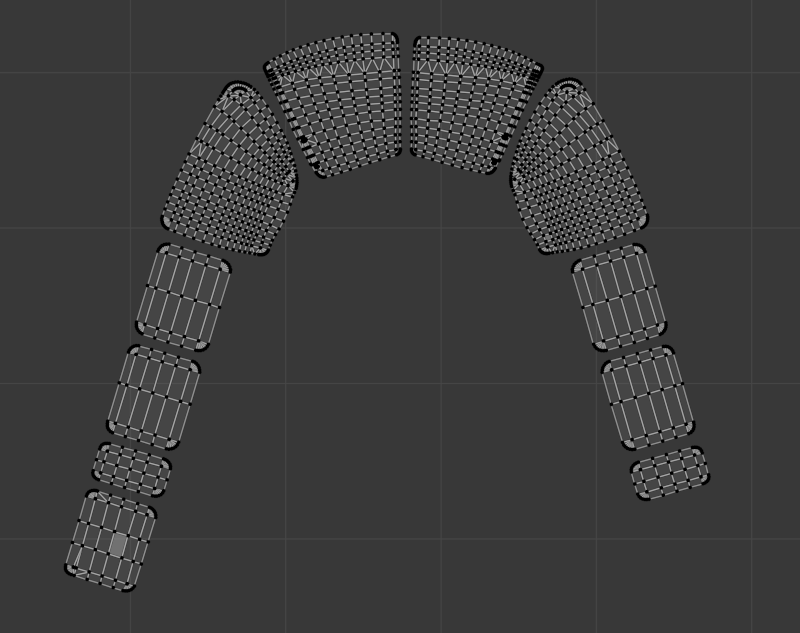
In reality, windshields are typically deiced using either resistance (electrical) heating elements, or by using hot air blowers. Both of these are examples of thermal sources. Thermal sources typically apply heat to specific areas of the windshield glass and the heat radiates out from that area across the windshield. This causes the ice to melt in a progressive pattern, melting nearest the heat source first and progressing from there. X-Plane models the progression of this heat flow via a 8-bit RGBA “thermal texture”, UV mapped to your RainGlass OBJ and using color gradients across the UV islands of the windows to model the movement of the heat.
X-Plane uses the four channels of the thermal texture to simulate up to four independent thermal sources. Most aircraft typically have only one or two thermal sources.
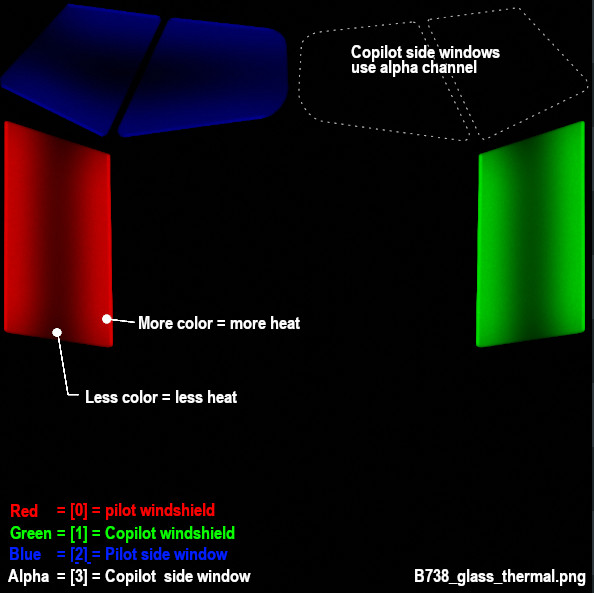
The image below shows an example texture where a fully saturated color pixel, i.e. 100% Red, Geen, Blue or Alpha(white) represents maximum heat flux and a fully black pixel represents zero heat flux. Note in the example below that there are no fully black pixels on the window glass because if there were, the window heat would not melt ice in these locations.
The gradient texture is quite straightforward, typically painted by hand using gradient tools in graphic apps like Photoshop or GIMP. Remember that a fully black alpha channel (when thermal source [3] is not used), will make your image transparent.
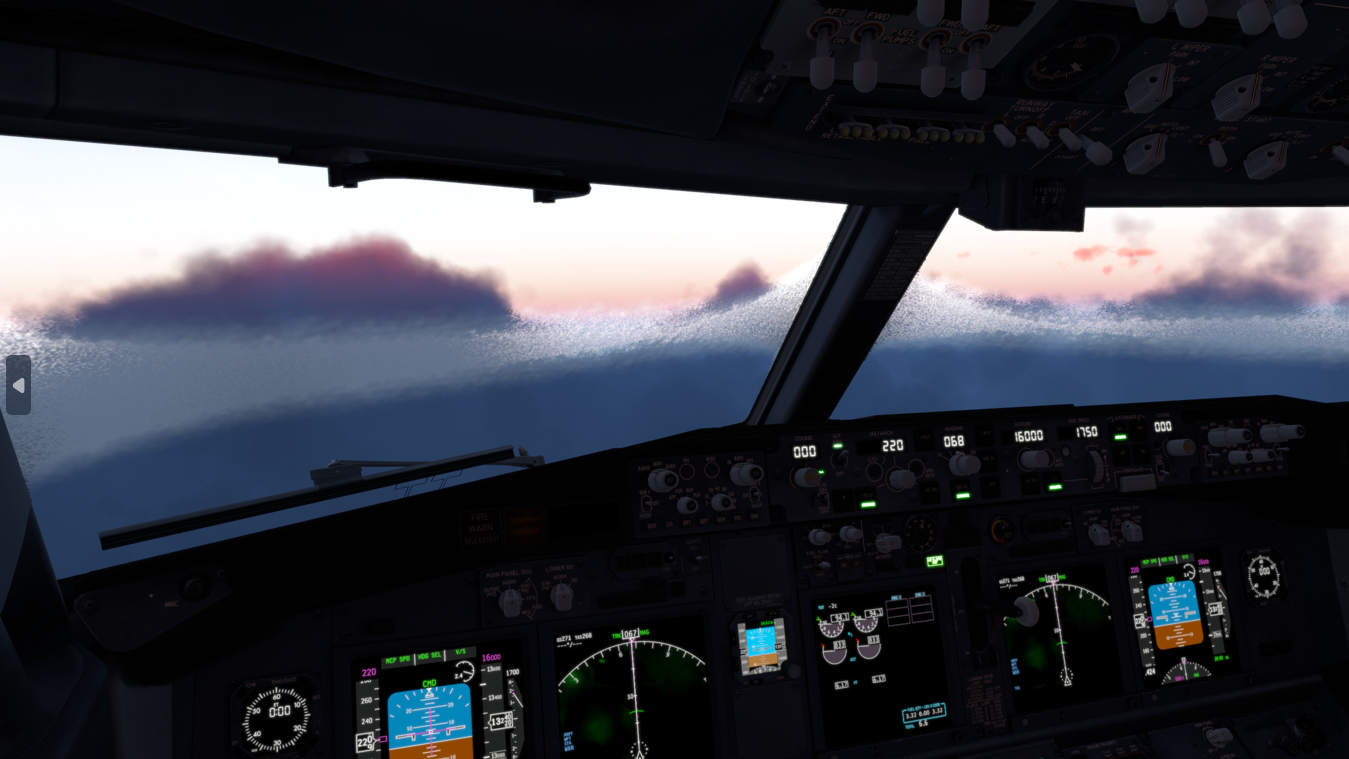
The image above illustrates how the thermal sources for the main windshields (Red and Green), are at the top and bottom of the windshields, and ice melts there first and then the heat moves towards the center of the window. In X-Plane the effect looks like so. For a hot-air blower fan configuration, you may have a radial type of gradient pattern, etc.
💡 TIP: Use a lower resolution THERMAL_texture to achieve better and more realistic looking heat propogation behaviours.
XPlane2Blender Settings
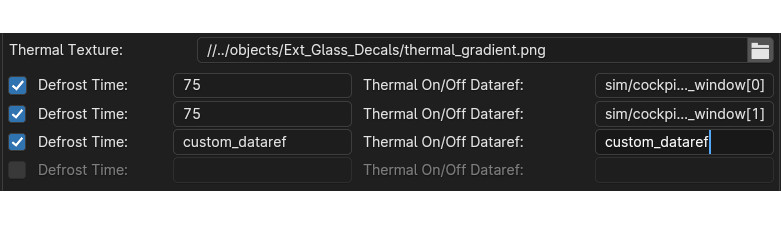
The XP2B settings for the thermal sources for window heat are found on Blender’s Scene tab in the collection settings (see image below). To configure your window heat, you enter the path to your thermal sources texture, presumably in the objects folder somewhere, and you enable however many thermal sources you need, up to 4 total.
For each thermal source you enable, you enter the Defrost time, in seconds. This field can be a fixed number or a dataref. This time represents how long, in seconds, a thermal source takes to fully deice a fully iced over window, assuming no ongoing ice accumulation. A shorter time represents more heating power. If you use a dataref, then you can alter this value at run time to simulate adjustable heating levels.
Next you enter the Thermal ON/OFF dataref. These datarefs, when 0, disable the window heat and when non-zero (usually 1), enable the window-heat. X-Plane have default datarefs for turning the window-heat ON/OFF for each source, which are listed further below.
The thermal settings in Blender will be exported to the OBJ GLOBAL settings in the form of two directives in the OBJ header section: one entry for the thermal texture file/path and one entry for each thermal source configured in Blender.
THERMAL_texture    path/to/texture/thermal_texture.pn;
THERMAL_source2   <index>    <rate_seconds or rate dataref>   <on/off dataref>
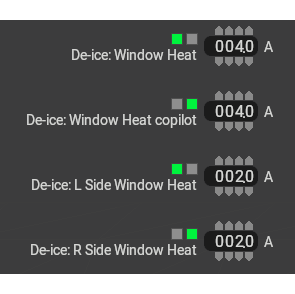
The exported windshield heat thermal parameters for the default B738, which uses four sources are shown below. Note that the ON/OFF datarefs are X-Plane’s status datarefs and not the window heat actuator/switch datarefs. The status datarefs take into account any system failures. You don’t want your window heat effects to be ON if the system is failed.
Power Consumption
You can configure the power consumption of each thermal source via PlaneMakers’s Standard Menu > Systems > Bus Loads Tab (the first one). When the status datarefs are 1, then X-Plane will add a current load to your electrical buses. These are fixed electrical loads only.
If you need to simulate a variable power window heat system and want to vary the power consumption of the thermal sources, then you will have to do so via plugin, adjusting your defrost time via dataref, calculating your power consumption and adding the load to a bus via sim/cockpit2/electrical/plugin_bus_load_amps[n]
Icing Commands and Datarefs
The following datarefs and commands are used with the Window heat / icing system.
        //  Actuator Datarefs (switch, button, whatever)
        sim/cockpit/switches/anti_ice_window_heat       // switch, 1st window
        sim/cockpit2/ice/ice_window_heat_on_window[N]   // switch, where N = 0-3

        // Actuator Commands
        sim/ice/window_heat_on                          // 1st window
        sim/ice/window_heat_off
        sim/ice/window_heat_toggle

        sim/ice/window2_heat_on                         // 2nd window
        sim/ice/window2_heat_off
        sim/ice/window2_heat_toggle

        sim/ice/window3_heat_on                         // 3rd window
        sim/ice/window3_heat_off
        sim/ice/window3_heat_toggle

        sim/ice/window4_heat_on                         // 4th window
        sim/ice/window4_heat_off
        sim/ice/window5_heat_toggle

        //  Status Datarefs.  Takes into account failures. e.g. can drive annuns
        sim/cockpit2/ice/ice_window_heat_on             // status, 1 window only
        sim/cockpit2/ice/ice_window_heat_running[N]     // status

        //  Failure State Datarefs
        sim/operation/failures/rel_ice_window_heat
        sim/operation/failures/rel_ice_window_heat_cop
        sim/operation/failures/rel_ice_window_heat_l_side
        sim/operation/failures/rel_ice_window_heat_r_side
Legacy Icing
It’s highly recommended to use the THERMAL_source2 directive with X-Plane 12.1.0 for any new aircraft development. The legacy THERMAL_source command still works in X-Plane 12.1.0, but the visual icing effects have inconsistencies with the X-Plane systems model with regards to how much ice X-Plane tracks on the windshield versus how much is visually rendered.
The syntax for the legacy THERMAL_source command is:
THERMAL_source <heat in ºC dataref> <on/off dataref>
…where the <heat in ºC dataref> is clamped between 5º and 20º C and then gets interpolated into a rate between 5 and 20 seconds.
💡 NOTE: Detail Textures were previously referred to as “DECALS”. The term DECAL is a legacy term. The OBJ directives: DECAL_PARAMS and NORMAL_DECAL_PARAMS are part of the OBJ specification and will not change; however, the term “Detail Textures (DTs)” are the official name for these specific texture types.
As of XP2B v4.3.3, the label “Decal” is used in the UI panels. Future versions of XP2B will adopt the label “Detail Texture” in lieu of “Decal”. Until such changes are integrated into XP2B, consider the terms interchangable in the meantime.
Introduction
Detail Textures, (DTs) are tileable, repeating textures that can be overlaid / mixed with either your OBJ albedo or normal textures. They were designed to add higher density textural detail without having to resort to large texel densities to capture those small details. Detail Textures were designed for use with ground textures but adapted for aircraft use; therefore, many of the XP2B DT configuration settings are not applicable for use in aircraft.
The image below shows DTs used to portray textured plastic and vinyl grain, where the albedo and DT texel densities are quite low, yet the DT overlay resolution is effectively higher because it is scaled down and tiled. By using less UV space on your albedo textures for these broadly colored areas, this frees up UV space to increase your texel density in other areas of your OBJ, or allow you to reduce the size of your albedo textures for more efficient VRAM usage.
Detail Texture Concepts
Refer to the image below:
An OBJ may have up to two DT Slots. Each slot may contain a ‘DT Albedo’ and a ‘DT Normal’ texture. Either DT in each slot may be used, one does not require the other. The example above only utilizes Normal DTs. The Albedo DT can have an alpha channel; however, the Normal DT ignores both the blue and alpha channels. Only the Red and Green channels of the Normal DT are utilized for normal/bump effects.
Each DT slot has its own scaling parameter. In the example below left, DT Slot 1 has a scale of 0.25 and DT Slot 2 has a scale of 0.5.
When using Albedo DTs, the color mixing with the Base Albedos is established by a graphics shader. There is no configurable ‘mixing mode’ such as “multiply / add / overlay”, and for Albedo DTs containing high saturation hues, the results can be unpredictable. Albedo DTs for aircraft use are best suited for adding lower saturation hues.
DTs are tiled orthogonally, there is no provision to rotate the tiled pattern.
An optional Red / Green channel Modulator Texture (MT) may be utilized as a mask, to control where DT1 and DT2 are applied to the Base Albedo texture.
A Base Albedo texture is required to use Albedo DTs and a Base Normal Texture is required to use Normal DTs.
The XPlane2Blender settings for Detail Textures (DTs) are found on the Scene Properties Tab as shown below. Additional fields will appear once you enter the DT filenames. The image below shows the XP2B UI widgets for Albedo DT and one Normal DT. The good news is that for aircraft use, we do not need too many of these options. The highlighted areas in green are the only fields you need to be concerned with for aircraft use. The others fields are used for scenery development and ground texture DTs. Each field is as follows:
SCALE: The scale isn’t exactly a scale factor in the typical sense, but rather the “number of tiles” along the edge of the albedo, ergo it is the inverse of the scaling factor. In the example above left, the scale would be 4. This field should be a value ≥ 2. One tile makes no sense as you could just mix the textures together in Photoshop.
RGB Decal Modulator Strength: This is most easily described as a type of opacity or ‘strengh of effect’ value. A value of 1 mixes the DTs with the Base Albedo with full strength. Lower values reduce the effect of the DTs. (Example further below). A value of zero effectively negates the DT effect.
Modulator Strength: Same as above, but for the DT Normal Texture.
Modulator Texture: A Red/Green channel texture to use as a mask for DTs 1 and 2. The red channel of the Modulator Texture will control where DT1 is applied and the green channel controls where DT2 is applied. The Red and Green channels may be mixed to apply both DT1 and DT2 to the same area of the texture. If no Modulator Texture is specified, then the DTs will be applied uniformly over the entire Base Albedo.
Examples
The best way to illustrate the use of Detail Textures are with examples. We are going to start simple and get progressively more complex. We will be using the following Objects and Textures below in our example. We have two Albedo DTs and 3 Normal DTs to work with, in addition to our Base Albedo and Normal textures.
This is what it looks like in X-Plane without any Detail Textures applied:
Normal Detail Textures
We first begin with normal textures, because they are the most likely application with aircraft. We apply a Leather grain normal texture (256px) by specifying leather_NML.png as Detail Texture 1, setting the Modulator Strength to 1 and arbitrarily set the scale/tiles to 50. The results look like so.
In the above image, note that the effect is applied over the entire OBJ, including the knob because no modulator texture was specified to mask areas of the texture. We will now specify a modulator texture to limit the leather grain effect to just the gauge surround using the RED channel, since this is a Slot 1 detail texture.
In the image below, the settings are the same as above, except for the addition of the Modulator Texture, “decal_mask.png”. Some of the gauge surround now have DT Effects (yellow mask) and some areas have no DT effects (black areas of mask = no effects). Note that YELLOW is equal parts RED and GREEN so any UV islands mapped to yellow will receive both DT1 and DT2 effects; however, because no DT2 has been specified yet, only DT1 shows up on the gauge surround. Lets add a second Normal DT texture to add some noise on top of the leather grain.
In the image below, we have added a second Normal Map Decal 2 with the 3 settings in XP2B circled in red. Because this is DT2, it is masked with the GREEN color channel. Since the knob UV is masked with GREEN, it receives the noise DT, but not the leather DT. The leather DT is indeed on the gauge surround, but it is overpowered by the noise DT effect. Lets reduce the Modulator Strength of the Noise DT a bit and scale up the leather DT slightly so we can see both effects on the gauge surround due to the YELLOW mask.
In the image below, you can see how the gauge surround now has both leather and noise normal effects. Also note how the modulator Strength reduces the effect of the Noise DT. Once you have specified your Normal DTs, simply adjust the Scale and Modulator Strength values to tweak the effect. Lets wrap up this section on Normal DTs with one last example. We’ll swap out the noise DT for the knurl_NML.png DT and set the Modulator Strength back to 1. The result is shown in the 2nd image below.
Albedo Detail Textures
Albedo textures are configured in the exact same way as the Normal DTs. Though there are more UI Widgets available for the Albedo DTs (for scenery textures), for aircraft you still only work with the same two input types as for Normal DTs, i.e. the Scale value and the RGB Decal Modulator Strength value.
As mentioned above, the color mixing of the Albedo DT with the Base Albedo is non-intuitive. The example below left shows a low-contrast noise_ALB.png added to the flat plate to add some grayscale noise color. The middle image shows the same flat plate, but with the noise Normal DT added in also. The right image shows a second, high contrast Albedo DT added, dots_ALB.png and illustrates how the color mixing of the Albedo DT with the Base Albedo yields a not so intuitive result that differs based on the pixels of the Base Albedo. (See original texture, dots_ALB.png texture above). Albedo DTs are best for applying more saturated, low-contrast colors, such as grime and dirt or to disrupt a bit of color uniformity.
OBJ Output
The image below shows the typical entries in the OBJ header for Detail Textures as XP2B exports the data. The order of the entries in the OBJ determines whether or not a Detail Texture is in Slot 1 or 2, and therefore, which will be affected by the RED and GREEN channels if a modulator texture is used. The XPlane2Blender UI references DTs 1 and 2, but this is semantic. If you specify DTs in XP2B in the DT2 slots, but leave the DT1 slots empty, then only one slot will be used in the OBJ and as such, any modulator ‘masking’ would be controlled by the RED channel. Best practice in XP2B is to simply use the DTs in order, i.e. DT1, then DT2 if required.
Summary Review
Take advantage of why Detail Textures exist, i.e. save VRAM by using smaller textures where you are able. If you use a Detail Texture with a scale factor (tiling) of 1, there is no benefit.
Keep texel densities the same for UV islands that use the same Detail Textures so the effect is consistent across all meshes using it.
Use the Detail Texture Slots in the order they appear in XP2B, i.e. DT1, then DT2
To recap, the Modulator Texture is for masking, the RED channel is the mask for Detail Texture 1 and the GREEN channel is the mask for Detail Texture 2.
X-Plane 12 can simulate both rain drop/wiper visual effects as well as icing and window heat effects on aircraft window surfaces. This article explains how to implement and calibrate rain effects only. Icing effects are discussed in its own dedicated article, “Windshield Ice Effects”. This article assumes you are familiar with:
The 3D OBJs to receive rain effects should only contain polygons for surfaces with rain effects. Do not include opaque or non-rain-effects polygons as part of your rain-glass objects.
You should expect to use two separate OBJs to represent your rain glass: one OBJ with outward facing normals and another OBJ with inward (cockpit/cabin) facing normals. Best practice is to name these two OBJs as follows for clarity reasons:
Each individual window should to be a continuous, manifold mesh in 3D with no UV seams, so that when UV unwrapped, the resulting UV island mesh is also continuous. Do not split up a singular window into multiple UV islands.
No UV island of any one window should overlap another on the texture. UV islands should have consistent texel densities between them and minimal warping for consistent rain drop sizes.
Any transparent meshes inside the aircraft, (typically translucent sun-visors) where you need to see the rain effects through these meshes, should be part of the inside_reflector object; however, the draw-order of the meshes within that OBJ may need to be configured (more below).
While you CAN use multiple OBJs set to Outside Rain Glass, this is not recommended. You should endeavor to use one OBJ for all external glass with rain effects and a second OBJ for all the inside (reflector) facing glass.
Enabling Rain Effects on OBJs
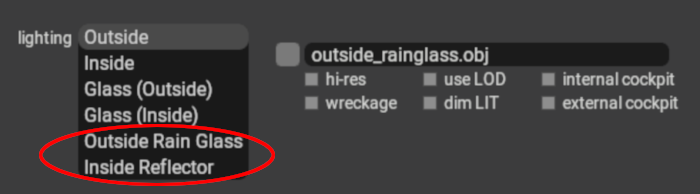
Rain effects can be enabled on your window OBJs by setting their lighting mode in PlaneMaker to either Outside Rain Glass or Inside Reflector. Use Outside Rain Glass for your OBJ with outward facing normals and use Inside Reflector for any windows (or visors) with inside/cockpit/cabin facing normals.
These two OBJ lighting settings are complementary and intended to be used together. If not utilized together, then inconsistent rain effects in various X-Plane views may result. X-Plane will simulate raindrops on these OBJ meshes, including the effects of gravity and aerodynamic forces.
UV Considerations for Rain Glass
To avoid differing raindrop sizes on your individual windows, ensure that the texel density of your UV islands are consistent.
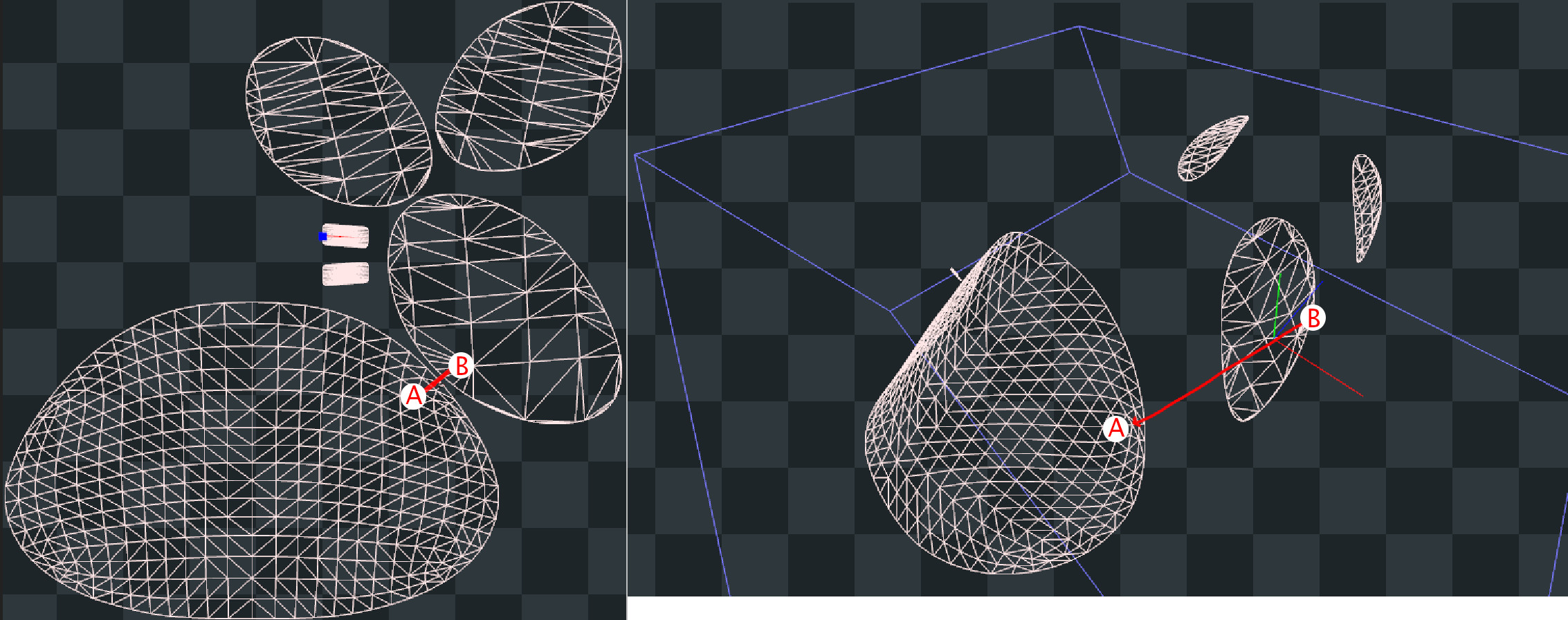
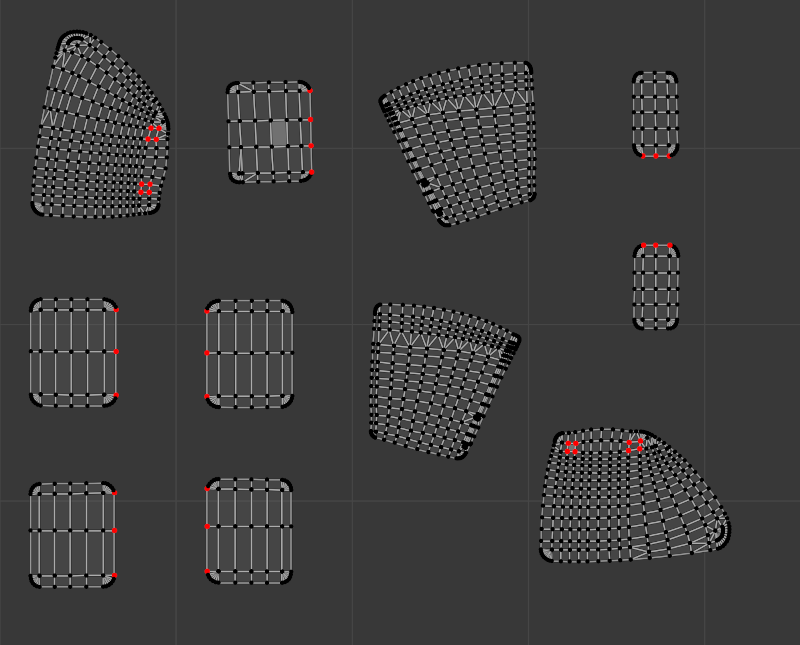
Regarding UV island packing, each flight loop, the rain algorithm calculates the velocity, direction and momentum of the raindrop in 3D space and then animates its translation on the 2D texture accordingly for the next flight loop. The algorithm knows when a raindrop is within the bounds of a UV island, so when a raindrop has been calculated to move outside of any UV island, then the raindrop ceases to exist. If your UV islands are packed close enough together, then the speed and momentum of the raindrop may be enough where the raindrop “jumps” from one UV island to an adjacent one in 2D space during one flight loop calculation. This effect is illustrated in the screenshots below on the default Lancair Evolution.
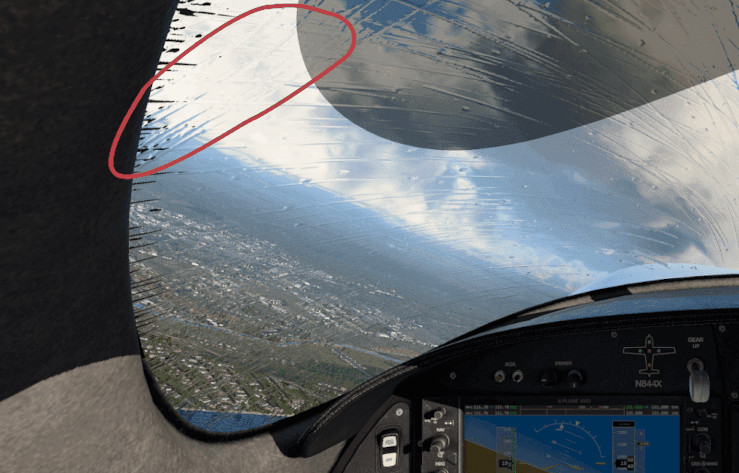
On the UV map (left side), the window uv islands are placed very close together, but the physical 3D locations of the window elements (right side) are not that close together, so in reality, a raindrop would not instantly jump from point A to point B as shown below, yet because the UV islands are close together, the algorithm may animate the raindrop as if this is what happened. If your UV islands are not aligned in a natural way, then a “jumping” raindrop could appear to change directions as its momentum carries it into the adjacent UV island, but with the direction vector from the previous UV island. The red circle in the image further below shows the undesired result of such a situation.
There are three ways to avoid this unwanted effect:
1. Use TRIS_break Directive (12.1+ only)
This is the preferred method for projects supporting X-Plane 12.1+ only. It allows for maximum UV island packing efficiency. If using this method, then each individual window should be separated to be its own mesh object in Blender. If using XPlane2Blender V4.3+, then on each window mesh, enable the “Rain Cannot Escape” checkbox_**.**_ The TRIS_break directive will then be applied to each window mesh. The image below shows the checkbox option and the typical results in the OBJ file.
The TRIS_break directive is a ‘separator’ between TRIS commands and does not need to exist both before and after a TRIS entry in the OBJ file; however, Xplane2Blender may put extra TRIS_break directives before and after some TRIS commands, which is fine. If you are manually editing the OBJ file, just know that a single entry between your rain glass TRIS is all that is required to prevent ‘raindrop jumping’ between those TRIS groups.
2. Align UVs in a Natural Way
If you want to pack your UV islands tight, get good visual results, and still support X-Plane versions prior to 12.1, then you can align your UV islands so that if a raindrop is moving fast enough that it migrates from one UV island to the next in a single flight loop, then it will be moving in a consistent direction between the UV islands. The example below shows how such UV islands might be aligned. If using this method, then each window does not need to be separated into its own mesh object, all windows can be part of a single Blender mesh object. This method is not recommended for large rainglass texture sizes! as it wastes too much textures space and VRAM. The better solution for pre 12.1 rainglass support is to pack your UV islands just tight enough to avoid raindrop “jumps” (method 3 below)
3. Spread out your UV Islands
The third option is to spread out your UV islands as required, orienting each island any way you like as long as they’re just far enough apart where a raindrop is unlikely to translate from one UV island to another in one flight loop calculation. As raindrops move outside a UV island, they cease to exist. Again, this method wastes some texture space similar to method 2 above, but not as much. As with option 2 though, the windows do not need to be separated into their own mesh objects. This is the better method if you want to support XP version before 12.1.
Windshield Friction (12.1+ only)
Different windshields might have different coatings applied to them to affect how rain interacts with them. For example, on aircraft with blowers, the windshield tends to be coated with a highly rain repellant material to avoid rain drops accumulating or streaking over them. Likewise, some aircraft also have the option to apply rain repellant during the flight to decrease glass friction. Starting with X-Plane 12.1.0, this can be modelled using the following GLOBAL directive in the OBJ header section.
RAIN_friction <some/dataref/and/default_is_1>
The dataref lets you adjust the friction dynamically at runtime, although most aircraft will probably just use a fixed value as this is not a common option on aircraft glass. Decreasing the value will decrease glass friction and also decrease the likelihood of rain drops becoming streaks.
Rain Drop Size / Scale
X-Plane creates rain drops with a default, unitless size of “1” and depending on the texel resolution of your UV islands, the rain drops may need to be scaled up or down for your application to look more plausible. The scale of the raindrops may be altered to be bigger or smaller via an OBJ Global Directive, “RAIN_scale”. This scaling factor can be set via the Collection Properties Panel. This value is typically set after testing in X-Plane using the Rain Inspector Tool described next.
Rain Inspector Tool
X-Plane has a tool to debug Rain Effects in sim. This tool was developed for internal Laminar use but proved useful enough to make available to the public. Being an internal tool, it has several settings you will not need to be concerned with. This tool allows for quick testing of the rain effects without having to change X-Plane’s weather settings. The image below shows the sequence for use. If you have configured your OBJs to be rain glass/inside_reflector, you will see the rain effects in X-Plane as you make adjustments to the Spawn and Scale sliders. Note that its typical to run your test on the Outside Rain Glass OBJ only since that is the only surface exposed to the rain.
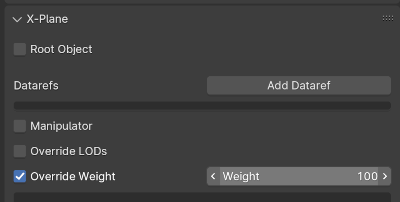
Be sure you check the rain effects from both inside and outside the aircraft. If you have any translucent sun visors, then make sure you can see raindrops through those as well. If you cannot, then make sure your sun-visor meshes are part of your Inside reflector OBJ and also that your sun-visor meshes have been configured to draw last within the OBJ by using XPlane2Blender’s “override weight” option on the object property Tab as shown below. Mesh objects assigned a weight value will draw in the order of their Weight values, with the highest weight value mesh objects drawing last.
3D Windshield Wiper Effects
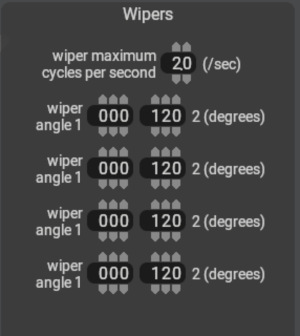
If your aircraft have 3D windshield wipers, you will first need to configure the periodic timing of the wipers in PlaneMaker via the Standard Menu > Viewpoint > Cockpit Tab > Wipers panel as shown in the example screenshot below.
In this panel, you specify the limit angles of the wiper travel (usually 0º to some max valueº) and their oscillation frequency. These fields establish the range of values of the four wiper angle datarefs below, which can be used to drive your 3D wiper animations as well as the 2D wiper effects.
// Dataref to turn on the wipers
sim/cockpit2/switches/wiper_speed_switch    // 0 = park,    1 = 25%speed,   2 = 50%speed,    3 = 100%speed.

// Datarefs for the Instantaneous Angle of the wiper arms
sim/flightmodel2/misc/wiper_angle_deg[0]
sim/flightmodel2/misc/wiper_angle_deg[1]
sim/flightmodel2/misc/wiper_angle_deg[2]
sim/flightmodel2/misc/wiper_angle_deg[3]
Since the raindrop animations happen in 2D texture space, and windshield wiper animations exist separately in 3D space, then we need a way for the 2D rain algorithm to know where your 3D wiper blades are on the window so the effects are in sync. You don’t want the 2D rain wiper algorithm wiping away raindrops behind or ahead of your 3D wiper blade, so timing the 2D effect with your 3D animation is critical.
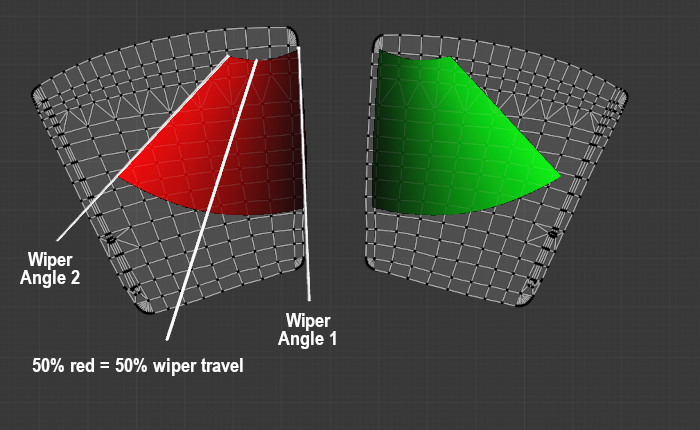
The 2D wiper position reconciles with the 3D position through the use of a dedicated “wiper gradient texture”, with colored gradient regions that represent the area swept by the 3D wiper blades across the UV islands. The color black represents one extreme position of your wiper travel (0% / wiper angle 1) and a fully saturated color channel (100% red / green / blue / alpha(white)) represents the other extreme position of your wiper travel (wiper angle 2). The example below shows how these swept gradient regions overlay the UV islands of windows as well as how the gradient values represents wiper travel.
Because we use a single image with four channels (RGBA) to contain the wiper data, this means we can simulate up to four independently controlled wiper blades per OBJ, but most of the time there’s just one or two. The image below shows what a typical wiper texture looks like for two independently controlled wipers where RED = wiper 1, GREEN = wiper 2. (BLUE = wiper 3, Alpha = Wiper 4, neither of which are used below). Note that if both wipers were controlled together by a single dataref (wiper 1), then both wiper gradients would be RED.
If your windshield wiper animation is completely linear, i.e. you only have two keyframes at the extreme positions, then the gradient texture would also be completely linear along its arc and you might could paint this texture by hand with some deft software ninja skills, but its not always as easy as it may appear and getting the gradient exactly right so the wiper effect matches the 3D wiper position can be a challenge. Fortunately, XPlane2Blender has a solution for us! The “Bake Wiper Gradient Texture” tool.
Wiper Gradient Texture Baking
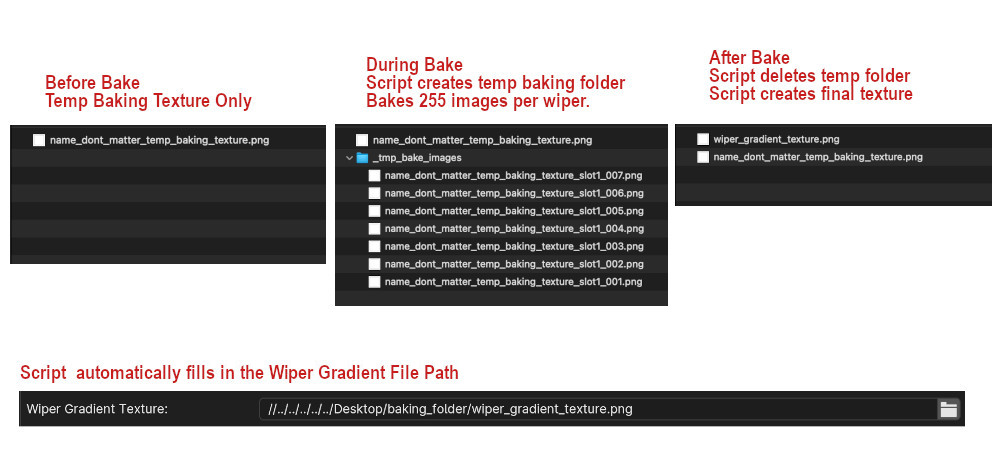
This tool will automatically create your Gradient Wiper Texture for you by using your 3d animation to generate the 2D wiper texture. In general, you’ll create a temporary ‘baking texture’, input/set multiple parameters in Blender, begin the bake, and during the bake process, the script will create a temporary folder and bake 255 temporary images per wiper. After that baking step, the script will then use those temporary images to create the final wiper texture, save it and delete the temporary folder. The baking process can take a while depending upon your machine capabilities, bake settings and texel densities. The single wiper example shown below was done on a Mac M1 laptop and took approximately 12 minutes total with a conservative texel density. Higher texel densities will increase bake times.
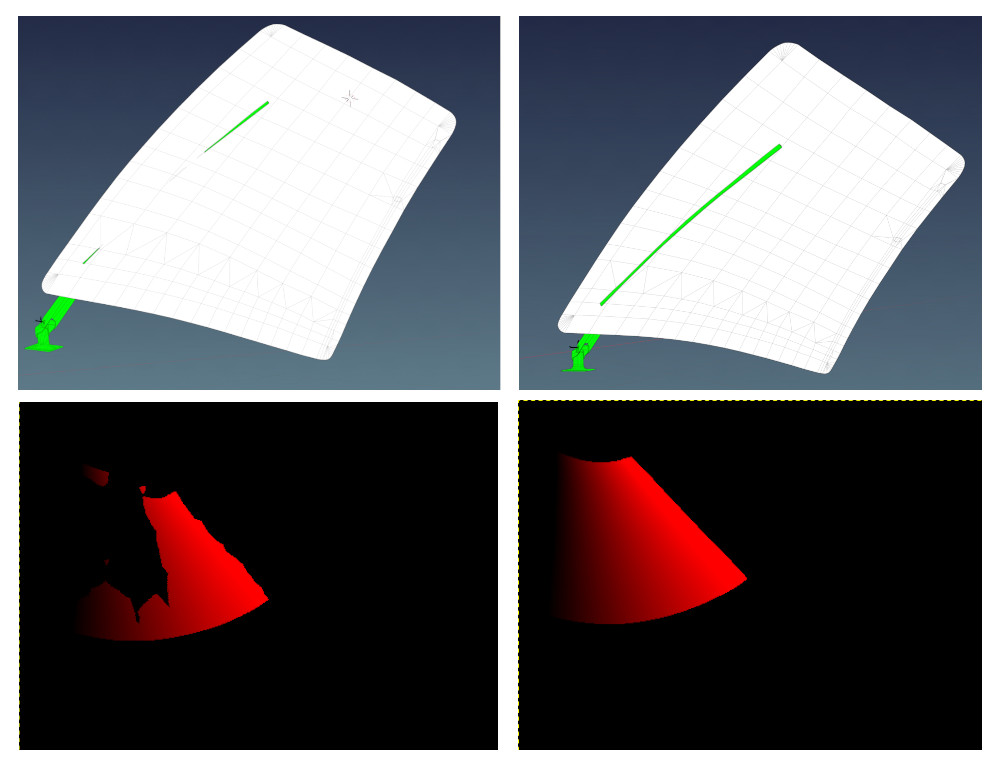
💡 IMPORTANT: For usable results, the wiper blade and windshield need to be in “collision contact” throughout the animation, i.e. the blade penetrates THROUGH the windshield mesh. If not, you may end up with areas on the UV island that are not calculated properly and you will get blotchy results. The image below shows the difference in results with partial intersecting geometry (left side) vs. fully intersecting geometry (right side). Its common to duplicate a blade temporarily and reshape / extend it through the windshield just for the gradient bake and then discard it after.
There’s a lot of steps in the baking process, so we’ll just dive right in via a step-by-step checklist:
Make sure ‘Cycles’ is the active renderer. It will not work with Eevee or Workbench.
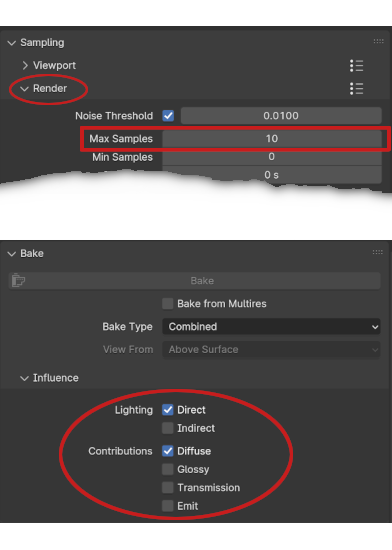
Set your Cycles Render samples (not Viewport) to a low number, like 10, and set your Lighting and Contributions check boxes as shown below. (Blender 4.1 shown). This will reduce baking time.
A four channel (RGBA), 8-bit per channel (32 total) “temporarybaking texture” must exist beforehand. Create, name and save an empty PNG the same size as your final texture, any filename will work. If you use Blender’s Image>New menu to create the image, do NOT select the ‘32-bit Float’ checkbox option, this results in 32-bits per channel, not 8 and will prevent the bake.
You can put this temporary texture anywhere you like for the bake, but we recommend putting it in the same location where you normally keep your other OBJ textures because the script will automatically create the final wiper gradient texture in this same location AND automatically enter the file path in the “Wiper Gradient Texture” text field for you (overwriting any existing entry). If you move the wiper gradient texture to some other final location after the bake, you will need to adjust the file path so it gets written to the OBJ header correctly.
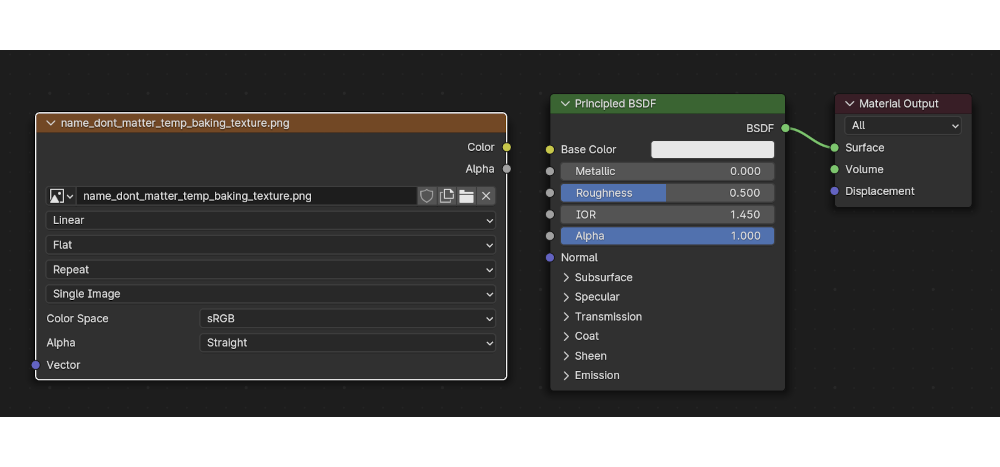
Add an Image Texture Node to your rainglass material, and select the temporary baking texture you created in the previous step. The wiper script leverages Blender’s baking workflow and gets the file path to the baking texture from this image texture node. Unlike a regular Blender bake however, the image texture node need NOT be selected to bake, but does not matter if it is. Below is an example of an image node with the temp baking texture selected.
Animate your wiper motion over 255 frames (required). You can begin at any keyframe ≥ 1, but your last keyframe needs to be (Begin keyframe + 254). So if you begin your animation at keyframe 1, then your last keyframe will be 255. If you begin at keyframe 16, your last keyframe is 270, etc. The baking UI dialog allows you to specify the first keyframe value and Xplane2Blender will add 254 to it. The default begin keyframe is 1, we recommend you stick with that. You can use as many intermediate keyframes as is required for your animation. TIP: If you have already animated your wipers, but not over 255 frames, then note that Blender’s scale(S) command works on keyframes! Set the animation playhead on your first keyframe, select all keyframes for your wipers, hit ‘S’ and simply scale all your keyframes until the last one is 254 frames after the first one.
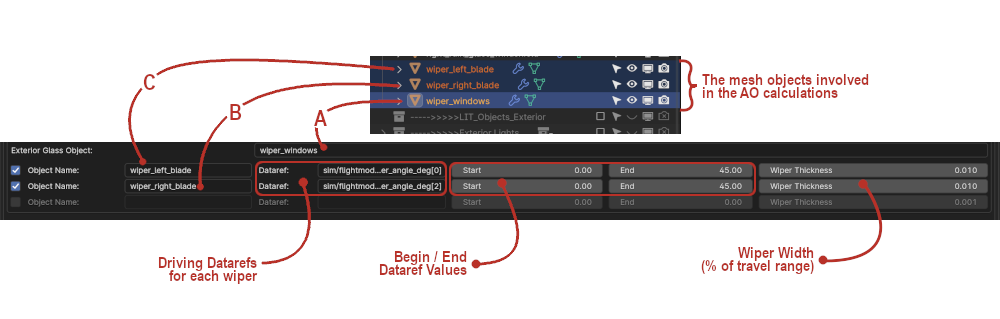
If you want to bake all wiper regions at the same time, then combine all window mesh objects that have wiper effects into a single mesh object (CTRL-J) for the bake. Give the mesh object (in the outliner) a unique name, e.g. wiper_windows. After the bake, you can separate out the mesh islands if need be, for example if you’re using TRIS_break option on each mesh object. You can also bake each wiper region separately if you want to and combine the images manually, i.e. you need to rebake one window only.
To shorten the bake time further, you can separate out the wiper BLADE mesh only (the part that touches the window). The fewer polygons involved in the calculation, the better. Give the wiper mesh objects that intersect the windows unique names (in the outliner) such as:
right_wiper_blade
left_wiper_blade
Now its time to enter all the pertinent data into the Rain Options panel (Scene Tab Collection Settings). Note that if your “Wiper Texture Gradient” text field is empty (the script will fill it in after the bake), then the wiper UI elements may appear grayed out; however, this is simply visual and you can still enter information in them. You will be manually entering mesh object names (from the outliner) into the Wiper settings text fields. If you misspell the name, the script will let you know with an error pop-up when you try to bake. In the example screenshot below, Item A is the Exterior Glass Object with wiper effects. Item B is a wiper blade mesh and Item C is a second wiper blade mesh. These fields tell the script which mesh objects to include in the baking process. If you have more wiper blades, just enable the bottom checkbox to enter their data. The example below will bake two wiper gradient regions to the RED and GREEN channels of the gradient texture.
NOTE: Each time you enable a checkbox, a new one will appear, up to 4 total. In the Object Name text box, enter the name of the Wiper Blade Mesh Object. Confirm name in Outliner. The first wiper will be Wiper 1 (red), the second Wiper 2 (green), etc, etc.
Enter the name of the driving datarefs for each wiper and keyframe values. This data will get written to the OBJ file. Common datarefs are:
sim/flightmodel2/misc/wiper_angle_deg[0]
sim/flightmodel2/misc/wiper_angle_deg[1]
The following two items are required in order for the Bake Wiper Texture Gradient button to activate.
The collection with the rainglass meshes must be enabled for export on Blender’s Scene Tab.
The collection with the raingless meshes must be selected in the outliner.
Time to Bake! On Blender’s Render Properties Tab, and with the above two criteria met, the “Bake Wiper Gradient Texture” button should now be active. Press the button to begin the bake. The image below shows the sequence of the Gradient Texture Baking Process.
A few things to note about the bake process:
During the bake, you will not see any animation in the 3D viewport. The wipers will not move. Blender is essentially “frozen” with no progress indicator, so don’t plan on doing any work in Blender while the bake is going on.
You can monitor the progress by observing the contents of the ‘__tmp_bake_images_’ folder, which will be growing with files as the 255 images (per wiper) are baked. Do expect 10+ minutes per wiper channel.
Once all images are baked, there will be a period of time with no apparent activity as the script calculates and assembles the final gradient image.
When complete, the temporary folder will be gone, the “wiper_gradient_texture.png” file will be in the folder and Blender will be functional again.
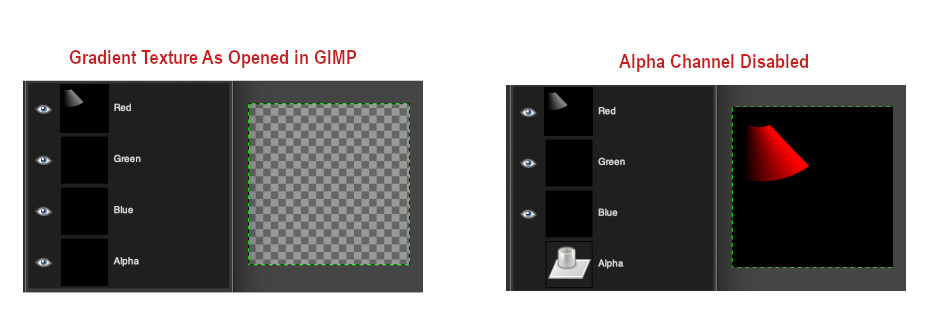
💡 NOTE: The script writes to all four image channels (RGBA) regardless of how many wipers are configured. If baking less than 4 wipers, the alpha channel will be completely black and as such, the RGB channels will be transparent when you open the image; however, the color information for the baked channels is present as can be seen below. Disabling the alpha channel will reveal the RGB channels.
Exporting and GLOBAL Settings
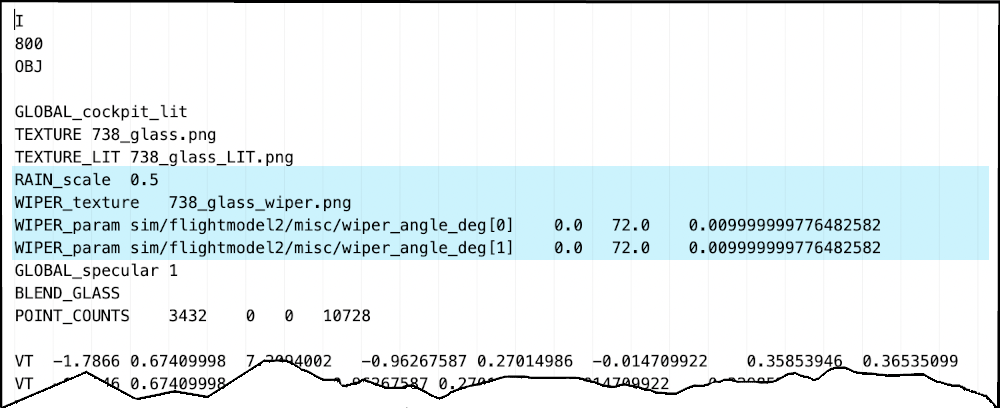
After exporting your rainglass object, the rain settings will be present in the GLOBAL properties of the OBJ as shown below. The default 737 example below has two independently controlled wipers, a custom rain scale and one wiper gradient texture. Remember that the wiper baking script will auto-name the baked texture, “wiper_gradient_texture.png”, but you can rename it to anything you like. If you do rename it, then make sure you also change the filename in XPlane2Blender’s “w_iper gradient texture_” text input box. Its good practice to check the exported OBJ to make sure all the settings and filepath are as expected.
Starting with version 12.1.1, X-Plane includes a built-in web server that provides a way for applications to communicate with a simulator instance on your machine via the http protocol, using a REST and Websockets API.
The REST and Websocket interfaces are NOT exclusive, they are complementary to each other and serve different purposes. Depending on your use cases, you might need to use both of them: the REST interface to read and write specific resources or trigger specific actions; the Websocket interface to “stream” information to/from the simulator.
The actual simulator resources of course are shared: during a simulator session, a dataref ID is the same ID no matter if you reference it from the REST interface or from the Websocket interface.
The supported operations are:
Introduced in v1 (X-Plane 12.1.1 and up)
Getting the list of available Datarefs (REST)
Getting the count of available Datarefs (REST)
Read or write a particular Dataref (REST)
Subscribing/Unsubscribing to one or more Datarefs to get periodic updates (Websockets)
Streaming data to one or more Datarefs on the simulator (Websockets)
Introduced in v2 (X-Plane 12.1.4 and up)
A root endpoint that returns the supported API versions (REST)
Getting the list of commands (REST)
Getting the count of available commands (REST)
Activate a command (REST)
Subscribing/Unsubscribing to one or more Commands to periodic updates about their activation status (Websockets)
Streaming one or more activations to the simulator (Websockets)
Introduced in v3 (X-Plane 12.4.0 and up)
Initialize or update a flight (REST)
We have plans to extend this further to handle more operations. See “Roadmap” at the end of this document.
💡 NOTE: This document assumes the reader is a programmer, knows what JSON is, and has experience consuming REST and Websocket API interfaces.
The web server
The X-Plane web server endpoints are available at:
They share the same TCP port, because http and Websocket are application-level protocols, not server-level protocols.
You can pick the port to connect by launching X-Plane from the command line with the --web_server_port= flag. Example: ./X-Plane --web_server_port=8088.
If you wish to not expose your X-Plane instance to REST/Websocket traffic, effectively disabling the APIs entirely, you can set the network’s security policy in the ‘Network’ tab of the ‘Settings’ screen by selecting “Disable Incoming Traffic”.
Request format
For REST requests
The following headers are needed:
Accept: application/json
Content-Type: application/json
Body payload (if applicable) must be sent as a JSON formatted string (not FormData).
When a successful request happens, the server will return a HTTP 200 code and a payload. The payload is either null for an operation that doesn’t return a result or an Object with a data member, which will contain the requested object, observing the corresponding schema (see “Data schemas” below). If there’s a collection of objects, data will contain a array of them.
In case of an error, the corresponding HTTP error code will be returned, along with a payload containing a machine readable error code and a human readable error message. The possible error codes for each API method are detailed under the corresponding documentation for that method.
Note: If you have selected “Disable Incoming Traffic” on the ‘Settings’ screen, all methods will return a “403 Forbidden” HTTP error.
Example “error” response:
{
    "error_code": "index_out_of_range",
    "error_message": "Index is out of range"
}
For Websocket requests
Websocket messages must be sent as JSON formatted plain strings, and have the following shape:
req_id (required) is a Numeric, unique, non-recyclable identifier of the request. The response to the request will contain the same id. Since requests (messages) sent from the client to the server and responses (messages) received from the server are completely asynchronous, this id will prove useful to determine which response belongs to which request.
type (required) is a String identifying the operation to perform on the server. If the operation type is not recognized by the server, you’ll get the unknown_type error code.
params (optional) is an Object containing the parameters of the operation.
For each valid message you send to the server, the server will send back an object that represents a message of type ”result”, with the success/failure of the operation indicated on the success field, the req_id which will match the one previously sent by the client in the request, and any errors on the error_code and error_message fields.
Example “success” result message:
{
    "req_id": 123, // id of the corresponding request
    "type": "result",
    "success": true,
}
Example “error” result message:
{
    "req_id": 123, // id of the corresponding request
    "type": "result",
    "success": false,
    "error_code": "index_out_of_range",
    "error_message": "Index is out of range"
}
For more information on how to handle Websocket requests, see this MDN article.
Data schemas
For now, the only schemas available are <dataref> and <command>. When you request one of these objects, you will get a JSON object with the following format:
id is a numeric identifier of the dataref for the current session of the simulator. This id will be the way of referring to this dataref if you want to get its value or subscribe to updates. There’s no guarantee that this ID will be the same the next time you start X-Plane, so don’t rely on it across simulator sessions; but within an X-Plane session, even across aircraft loads and unloads it will be stable.
name the fully qualified name of the dataref, as used by the simulator and plugins.
value_type one of float, double , int, int_array, float_array or data (represented as base64 encoded strings. You must encode the data before sending it and decode it when receiving it).
Note: We have plans to extend this schema to support more data we know about the dataref, such as a human readable description, the dimension (for arrays), read/write status, etc.
id is a numeric identifier of the command for the current session of the simulator. This id will be the way of referring to this command if you want to activate it or subscribe to its updates. There’s no guarantee that this id will be the same the next time you start X-Plane, so don’t rely on it across simulator sessions; but within an X-Plane session, even across aircraft loads and unloads it will be stable.
name the fully qualified name of the command, as used by the simulator and plugins.
description is the human readable description of what the command does.
REST API
Capabilities (v2+)
GET/api/capabilities
Returns the supported API versions and X-Plane version. Note that this endpoint is NOT versioned, so the request path starts with/apiand not/api/v1or/api/v2, etc.
Query params: (None)
Success response:
An object containing a api key with the supported versions and a x-plane key with the running X-Plane version.
Returns all registered datarefs in X-Plane at the moment of the request (both built-in and created by third parties).
Query params:
filter[{field}] (string, repeatable, optional) Specify to filter the dataref list by one or more fields using exact match. Currently the only supported field isname. You can repeat the filters as much times as you need — same filters will be joined by “or” logic, different filters will be joined by “and” logic. Example ?filter[name]=foo&filter[name]=bar&filter[name]=boo&filter[status]=CURRENT means ‘name is (“foo” OR “bar” OR “boo”) AND status is “current”’.
start (int, optional) Index from where to start, inclusive (for pagination).
limit (int, optional) How many results to return (for pagination).
fields (string, optional) Comma separated list of fields to return for each record. You can use this to reduce the data transferred down the wire if you don’t need everything about the dataref: all (default) or a comma separated list of field names as per the Dataref schema.
Note: For now, the only available fields are id, name, value_type.
Set a dataref value. In case of arrays, you can set a specific index of the array at a time, or you can set the whole array at once, but all values must be provided.
Url params:
id (int, required) Id of the dataref to update
Query params:
index (int, optional) index to set on array datarefs.
Body:
data A single item or an array of: <Number>; or a base64 encoded <String>
{ "data": 210 }
// or
{	"data": [210, 220, 240] }
Success response:
Just the HTTP code 200 OK. (Empty response)
Possible errors:
HTTP code
error_code
error_message
400
index_out_of_range
Dataref array index out of range
400
not_an_array
An index was provided but the dataref is not an array
400
incompatible_data
Provided data is too much or not enough to set all elements of the dataref array, or sent an array to write to a non-array dataref.
400
invalid_body
The request body is not valid JSON
403
dataref_is_readonly
Attempted to write to a read-only dataref
404
invalid_dataref_id
Dataref {id} doesn’t exist
List commands (v2+)
GET/commands
Returns all registered commands in X-Plane at the moment (built-in and third parties).
Query params:
filter[{field}] (string, repeatable, optional) Specify to filter the command list by one or more fields using exact match. Currently the only supported field isname. You can repeat the filters as much times as you need — same filters will be joined by “or” logic, different filters will be joined by “and” logic. Example ?filter[name]=foo&filter[name]=bar&filter[name]=boo&filter[status]=CURRENT means ‘name is (“foo” OR “bar” OR “boo”) AND status is “current”’.
start (int, optional) Index from where to start, inclusive (for pagination).
limit (int, optional) How many results to return (for pagination).
fields (string, optional) Comma separated list of fields to return for each record. You can use this to reduce the data transferred down the wire if you don’t need everything about the command: all (default) or a comma separated list of field names as per the Command schema (see above)
Runs a command for a fixed duration. Commands are invoked by sending a payload to this endpoint with a duration; commands stop after the duration. A zero duration will cause the command to be triggered on and off immediately but not be held down.
The intention of this end-point is to allow applications to send fire-n-forget commands to the simulator, particularly for commands where no duration is needed, e.g. sim/operation/pause . This end-point is not intended to send command up/down sequences, e.g. it is not appropriate for connecting hardware to X-Plane; for more advanced functionality, use the websocket interface.
Url params:
id (int, required) Id of the command to update
Body:
duration A required float time in seconds after which the command will be deactivated.
If you send a duration greater than zero, the command will be set to active for the specified duration, then it will be deactivated.
If you send a duration of 0, the command will be set and immediately unset. Is the equivalent of a press and immediate release of a button, for example.
The maximum legal duration is 10 seconds.
⚠️ Note: Remember that there might be other clients/connections/plugins/hardware operating on the command at the same time as you, so there are no guarantees about the state a command will be at any particular moment.
⚠️ Note: Since X-Plane cannot distinguish between clients of the REST interface, each request has its own duration. So if you POST a 5563/activate with { duration: 10 } then immediately a 5563/activate with { duration: 5} then the command will receive a “release” at 5 seconds from the second call, but it will still be holding for 5 more seconds until the second “release” of the first call. How that affects the results of the command depends on the internal X-Plane command handler, so don’t rely on any particular behavior. TL;DR: don’t send overlapping command invocations.
{ "duration": 0.5 } // press for half a sec
// or
{ "duration": 0 } // press & release
Success response:
Just the HTTP code 200 OK. (Empty response)
Possible errors:
HTTP code
error_code
error_message
400
invalid_body
The request body is not valid JSON
400
duration_out_of_range
Duration is out of valid range.
400
duration_missing
Missing duration parameter
404
invalid_command_id
Command {id} doesn’t exist
Get command count (v2+)
GET/commands/count
Returns the amount of registered commands in X-Plane at the moment (built-in and third parties).
Query params:
(None)
Success response:
An object containing a data member with the command count.
All or some scenery for the requested conditions is missing
Update flight (v3+)
PATCH/flight
Updates the current flight configuration.
Query params:
(none)
Body:
data A complete or partial JSON init structure as detailed on the Flight Initialization API documentation. Note that you cannot change the start location or aircraft during an update.
All or some scenery for the requested conditions is missing
Websockets API
Subscribe to dataref value updates
Receives an array of dataref ids to subscribe to. It adds to the list of already subscribed datarefs. The operation is idempotent. A failed subscription event fails all datarefs sent.
Request message:
Send a dataref_subscribe_values message with the list of datarefs you wish to subscribe as an array of objects containing id with the dataref id and optionally index with a index or array of indices you’re interested in getting back.
{
    "req_id": 9998, // Unique key to know the result later
    "type": "dataref_subscribe_values",
    "params": {
        "datarefs": [
            // only interested in idx 2 of an array dataref
            { "id": 1223, "index": 2 },

            // only interested in idx 0 to 3 of an array dataref
            { "id": 1224, "index": [0,1,2,3] },

            // single value dataref, or return all elements of an array dataref
            { "id": 1225 }
        ]
    }
}
Note: If you subscribed to certain indexes of the dataref, they’ll be sent in the index order, but no sparse arrays will be sent. For example if you subscribed to indexes [1, 5, 7] you’ll get a 3 item array like [200, 200, 200], meaning you need to remember that the first item of that response corresponds to index 1, the second to index 5 and the third to index 7 of the dataref. This also means that if you subscribe to index 2 and later to index 0 you’ll get them as [0,2]. So bottom line is — keep it simple: either ask for a single index, or a range, or all; and if later your requirements change, unsubscribe, then subscribe again.
Success message:
If the operation succeeded, the server will send a result message indicating so.
{
    "req_id": 9998, // id of the corresponding request operation
    "type": "result",
    "success": true
}
Update messages:
After a successful subscription, the server will start to push periodically (currently at 10Hz) to the client the following message of type dataref_update_values, containing an object with the dataref id as key and the dataref value as value:
Note: The message will contain only the datarefs whose values have changed since the last time they were sent. This means the first dataref_update_values message after a subscription will contain the values of all subscribed datarefs, but subsequent messages will only contain the updates.
Possible errors:
error_code
error_message
index_out_of_range
Dataref {id} array index out of range
not_an_array
An index was provided for dataref {id} but the dataref is not an array
invalid_dataref_id
Dataref {id} doesn’t exist
Unsubscribe to dataref value updates
Receives an array of datarefs to stop listening to. It removes them from the list of already subscribed datarefs. The operation is idempotent. If the dataref was not on the list, it’s ignored.
Request message:
Send a dataref_unsubscribe_values message with the list of datarefs you wish to unsubscribe as an array of objects containing id with the dataref id and optionally index with a index or array of indices you’re interested in unsubscribing to.
Instead of an array of datarefs, you could also send the special string "all" if you want to unsubscribe from every dataref you have subscribed.
{
    "req_id": 1234, // Unique key to know the result later
    "type": "dataref_unsubscribe_values",
    "params": {
        "datarefs": [
            // only unsubscribe to idx 2 of the array dataref
            { id: 1223, index: 2 },

            // only unsubscribe to idx 0 to 3 of the array dataref
            { id: 1224, index: [0,1,2,3] },

            // unsubscribe from a single value dataref,
            // or from all indices of an array dataref
            { id: 1225 }
        ]
    }
    // or
    "params": {
        "datarefs": "all"
    }
}
Success message:
The server will return the status of the operation. No further update messages will be received on the client.
{
    "req_id": 1234, // id of the corresponding request operation
    "type": "result",
    "success": true
}
Possible errors:
error_code
error_message
index_out_of_range
Dataref {id} array index out of range
not_an_array
An index was provided for dataref {id} but the dataref is not an array
invalid_dataref_id
Dataref {id} doesn’t exist
Set dataref values
Set one or more dataref values. In case of array datarefs, you can set a specific index of the array at a time, or you can set the whole array at once, but all values must be provided.
Request message:
Send a dataref_set_values message with the list of the dataref ids to update. The list must contain objects with id for the dataref id, value for the value to set (according to the dataref type) and optionally index to set a single index on an array dataref.
The server will return the status of the operation.
{
    "req_id": 1234, // id of the corresponding request operation
    "type": "result",
    "success": true
}
Possible errors:
If one or more update operations failed on the server, you’ll receive as many error messages as failed operations.
error_code
error_message
index_out_of_range
Dataref {id} array index out of range
not_an_array
An index was provided for dataref {id} but the dataref is not an array
insufficient_data
Provided data for dataref {id} is not enough to set all elements of the dataref array
invalid_dataref_id
Dataref {id} doesn’t exist
Subscribe to command activation updates (v2+)
Receives an array of command ids to subscribe to. It adds to the list of already subscribed commands. The operation is idempotent. A failed subscription event fails all commands sent.
Request:
Send a command_subscribe_is_active message with the list of commands you wish to subscribe as an array of objects containing id with the command ids you’re interested in getting back.
{
    "req_id": 9998, // Unique key to know the result later
    "type": "command_subscribe_is_active",
    "params": {
    "commands": [
            { id: 1223 },
            { id: 1224 },
            { id: 1225 }
        ]
    }
}
Success response:
If the operation succeeded, the server will send a result message indicating so.
{
    "req_id": 9998, // id of the corresponding request operation
    "type": "result",
    "success": true
}
Possible errors:
If the operation failed, the server will return a result message with the error codes.
error_code
error_message
invalid_command_id
Command {id} doesn’t exist
Update messages:
After a successful subscription, the server will push a message any time commands change their status with the following message of type command_update_is_active, containing an object with the command id as key and whether the command is active as a value:
Receives an array of commands to stop listening to. It removes them from the list of already subscribed commands. The operation is idempotent. If the commands was not on the list, it’s ignored.
Request:
Send a command_unsubscribe_is_active message with the list of commands you wish to unsubscribe as an array of objects containing id with the command ids you’re interested in unsubscribing to.
Instead of an array of commands, you could also send the string all if you want to unsubscribe from every command you have subscribed.
{
    "req_id": 1234, // Unique key to know the result later
    "type": "command_unsubscribe_is_active",
    "params": {
        "commands": [
            { id: 1223 },
            { id: 1224 },
            { id: 1225 }
        ]
    }
// or
"params": {
        "commands": "all"
    }
}
Success response:
The server will return the status of the operation. No further update messages will be received on the client.
{
    "req_id": 1234, // id of the corresponding request operation
    "type": "result",
    "success": true
}
Possible errors:
{
    "req_id": 1234, // id of the request operation
    "type": "result",
    "success": false,
    "error_code": "invalid_command_id",
    "error_message": "command id 88491 doesn't exist"
}
error_code
error_message
invalid_command_id
Command {id} doesn’t exist
Set command active (v2+)
Activate or deactivate one or more commands.
Request:
Send a command_set_is_active message with the list of commands to update.
The list must contain objects with id (int, required) for the command id, is_active (bool, required) for whether the command should be activated and optionally a duration (float, optional) for the time in seconds after which the command will be deactivated. This parameter is only allowed when is_active is true (sets).
If the command is set to active and you send a duration greater than zero, the command will be set to active for the specified duration, then it will be deactivated.
If the command is set to active and you send a duration of 0, the command will be set and immediately unset. Is the equivalent of a press and immediate release of a button, for example.
If the command is set to active and no duration is sent, the command will be set to active until is unset again. Internal note: the maximum legal duration is 24 hours.
⚠️ Note: Duration has no particular meaning to X-Plane. It’s merely a convenience that’s equivalent of sending a is_active: false after a certain time.
⚠️ Note: Remember that there might be other clients/connections/plugins/hardware operating on the command at the same time as you, so there are no guarantees about the state a command will be at any particular moment.
{
    "req_id": 1234, // Unique key to know the result later
    "type": "command_set_is_active",
    "params": {
    "commands": [
            {
                "id": 88491,
                "is_active": true,
                "duration": 0.5 // press for half a sec
            },
            {
                "id": 37555,
                "is_active": true,
                "duration": 0 // press & release
            },
            {
                "id": 37555,
                "is_active": true // press & hold forever
            },
            {
                "id": 39222,
                "is_active": false, // release
            },
            ...
        ]
    }
}
Keep in mind:
Setting active a command that’s already active does nothing. Correspondingly, trying to deactivate a command that’s already inactive will do nothing as well.
Setting the duration multiple times for a command changes the duration that is set for that command. So if you first set is_active: true, duration: 10, then you issue a is_active: true, duration: 5 the command will deactivate in 5 seconds. Similarly, setting a longer duration will extend its duration.
Deactivating a command with is_active: false will cancel previous durations.
Each websocket connection has it’s own book-keeping regarding durations. If your websocket is disconnected, all durations to all commands are erased and the commands will be automatically released.
Success response:
The server will return the status of the operation.
{
    "req_id": 1234, // id of the corresponding request operation
    "type": "result",
    "success": true
}
Possible errors:
If one or more update operations failed on the server, you’ll receive as many error responses as failed operations.
{
    "req_id": 1234, // id of the request operation
    "type": "result",
    "success": false,
    "error_code": "invalid_command_id",
    "error_message": "command id 88491 doesn't exist"
}
error_code
error_message
invalid_command_id
Command {id} doesn’t exist
duration_out_of_range
Duration is out of range
Roadmap
The end goal of this API is that you’re able to remotely control the simulator from another machine on the network. With that in mind, these are the following features we plan to implement but we’re open to community feedback if you have more ideas. We’d love to hear how you’re using these APIs and what use cases you have in mind! Reach us at support@x-plane.com.
LAN access and authorization: Allow clients to ask X-Plane for authorization to connect. X-Plane will present an authorization request popup asking the user if they want to allow the application to connect. The user will be able to see what applications are connected and revoke acesss to specific client apps. This will allow X-Plane to receive connections from other machines on the local area network.
Subscribe to dataref/command list updates (Websocket): Receive a message when new datarefs/commands are created by the sim.
Aircraft (REST): Allow the client to read the available aircraft and their capabilities.
Traffic (REST, Websockets): Allow the client to read/write and get updates on the user and AI aircraft positions.
Weather (REST, Websocket): Allow the client to read/write and get updates on weather.
…and more (failures, situations, nav data, time, airports, etc)