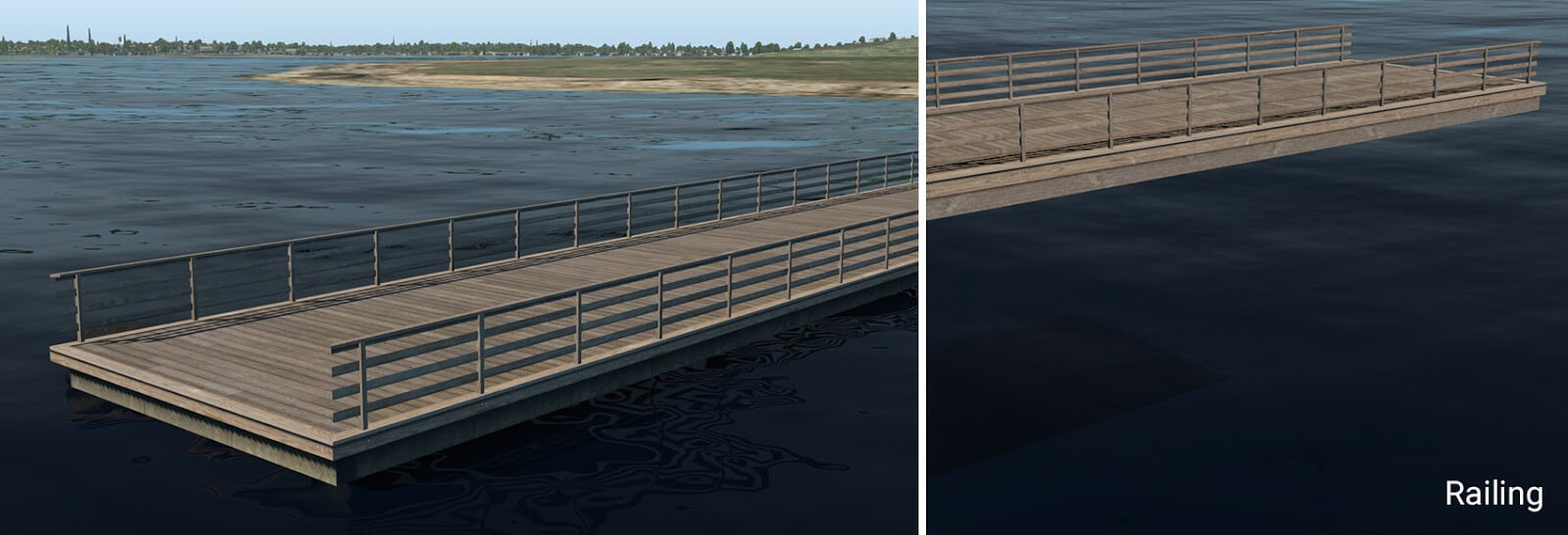
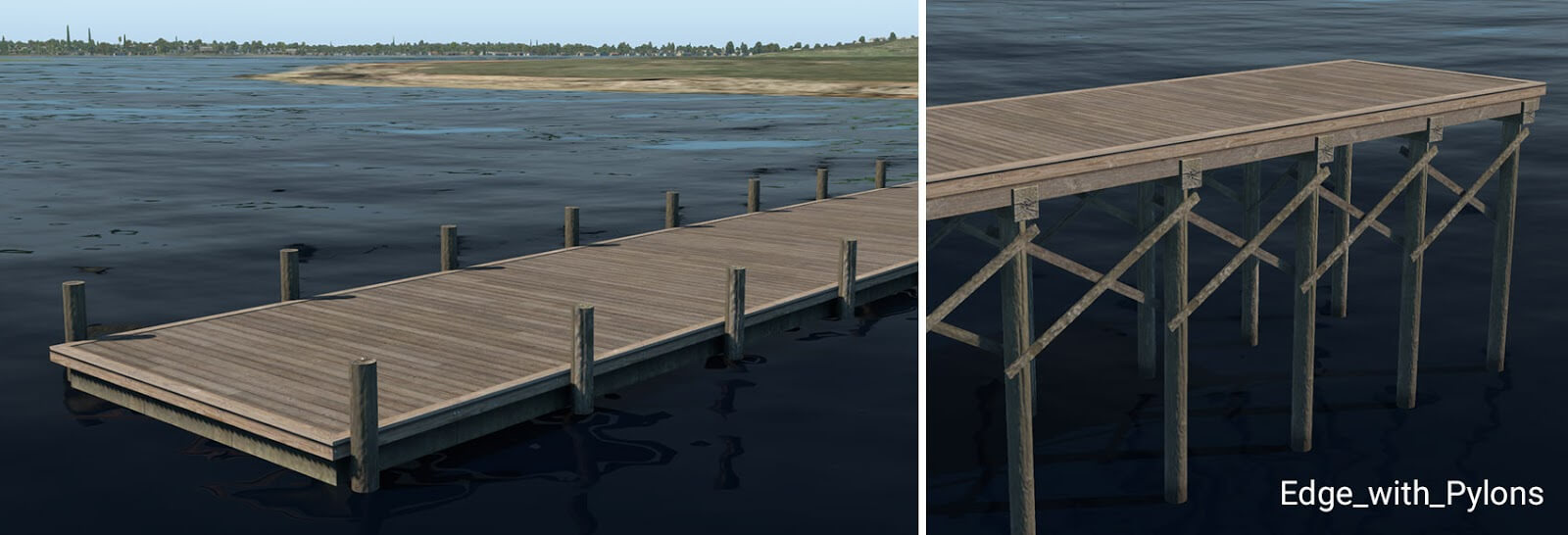
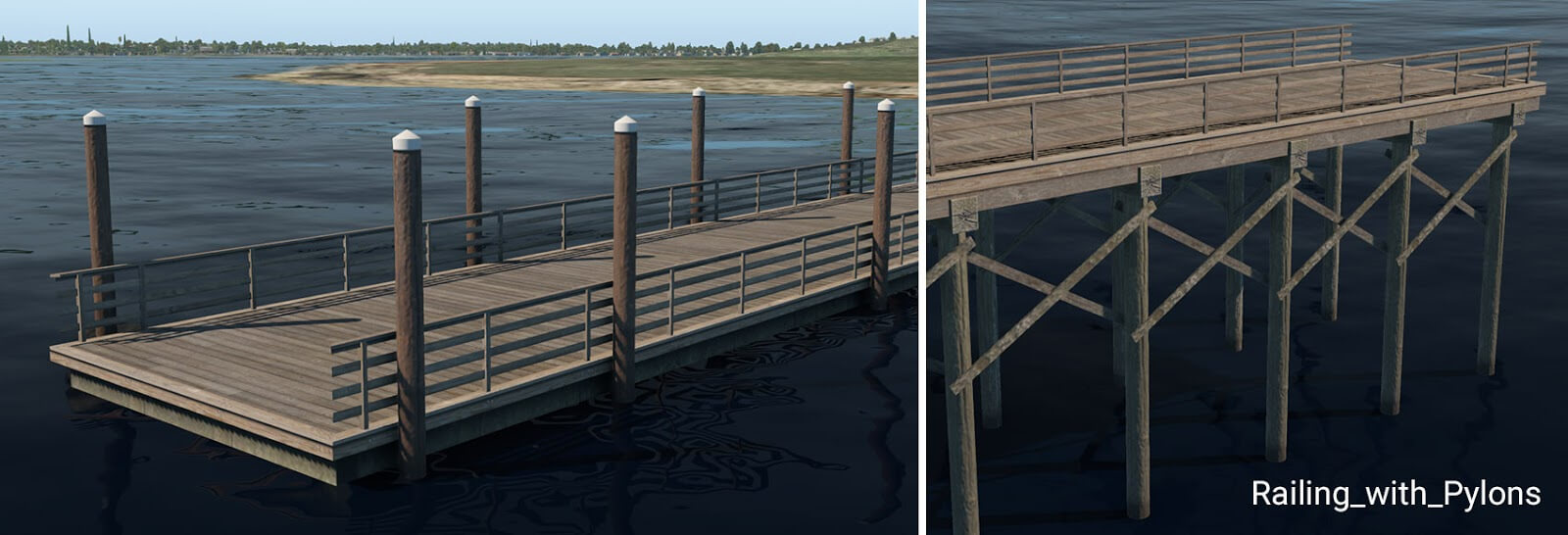
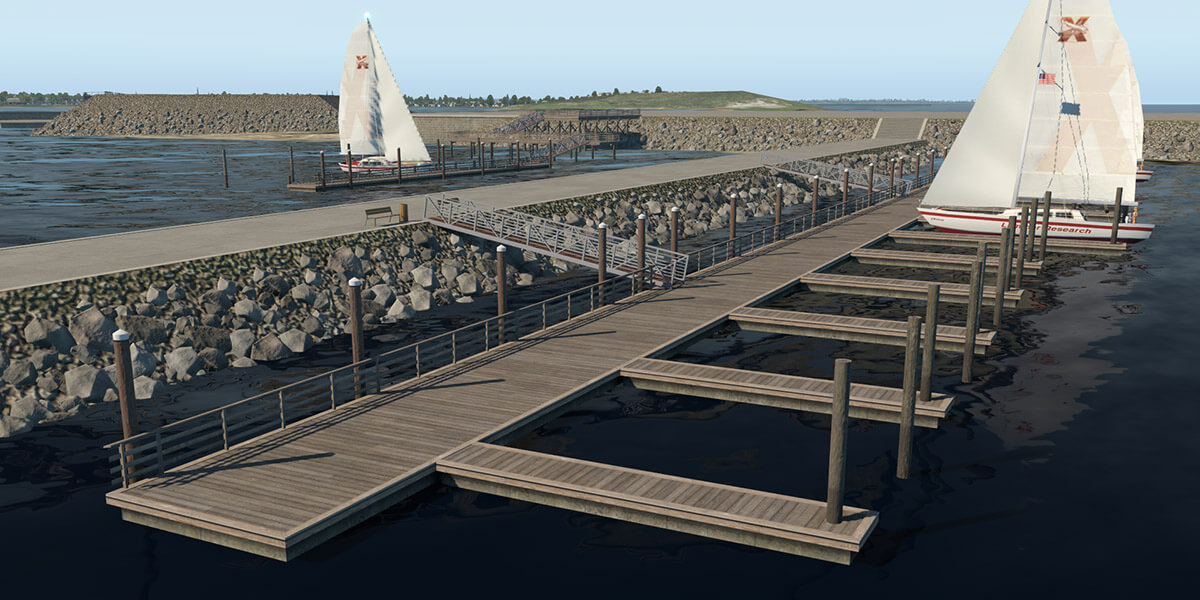
X-Plane 11.30 introduces new facades and objects for the creation of embankments, sea-walls, piers, and docks. These can be found in the WED library hierarchy at: “lib/constructions/piers“.
Key components are special facades with various wall types for specific usage (similar to the ‘Terminal kit’ introduced in an earlier release). This facade is used in the main for the creation of ship ports, quays, river banks and sea-walls.
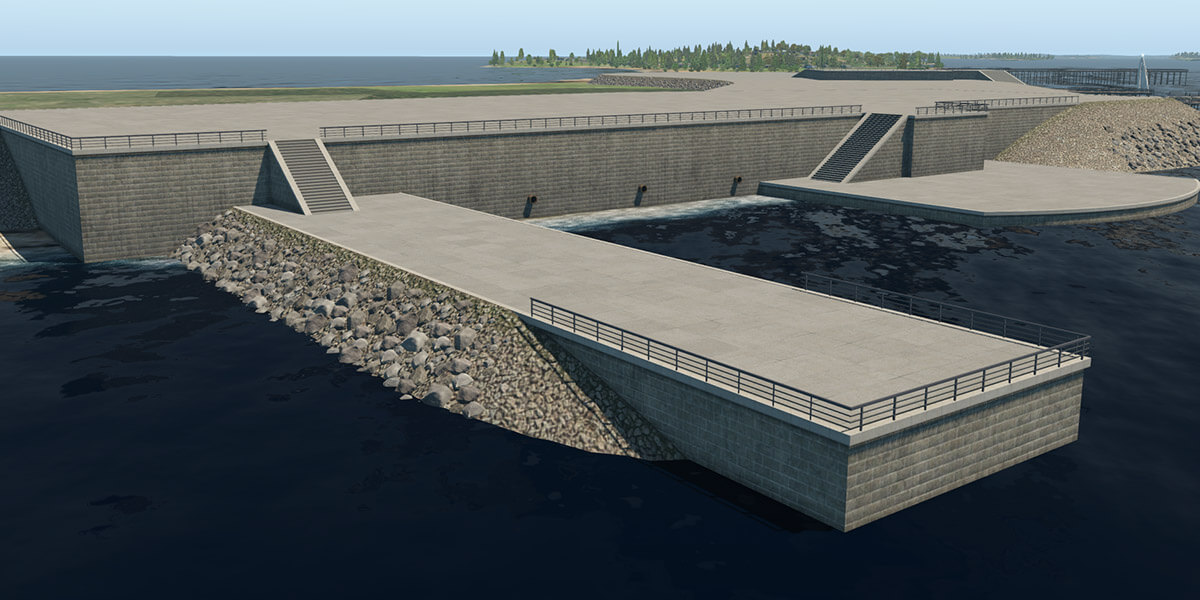
embankment_01.fac
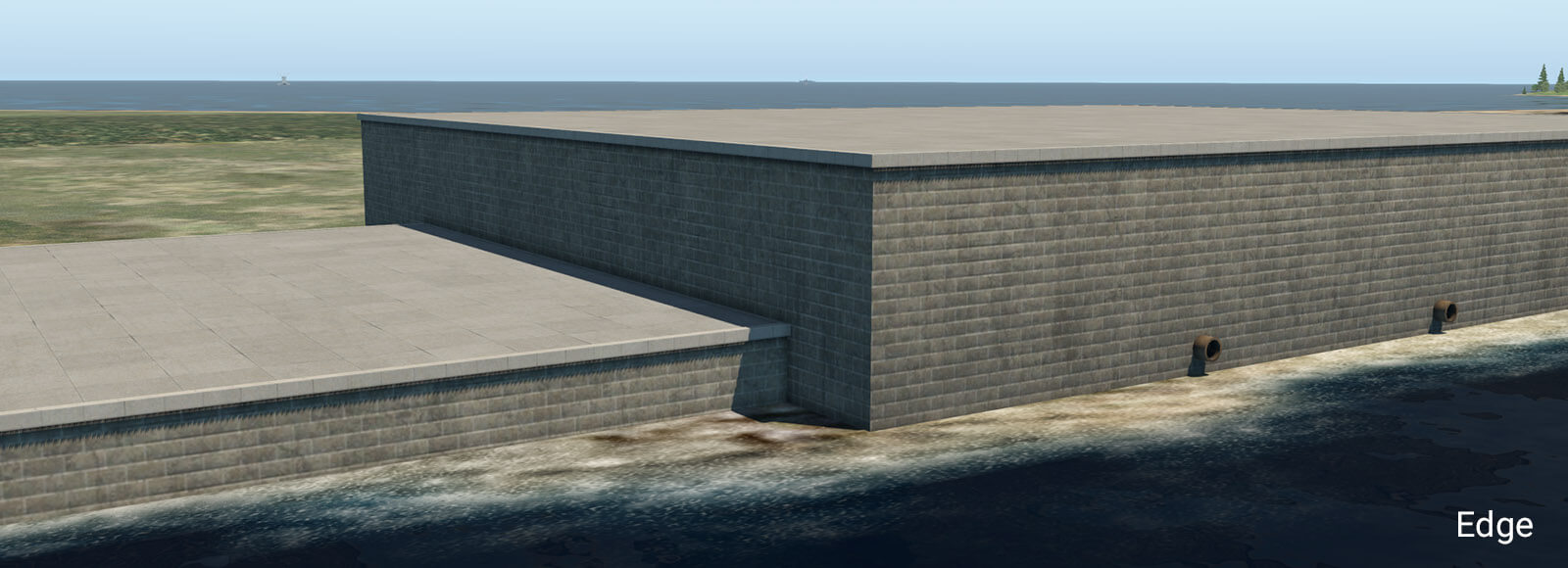
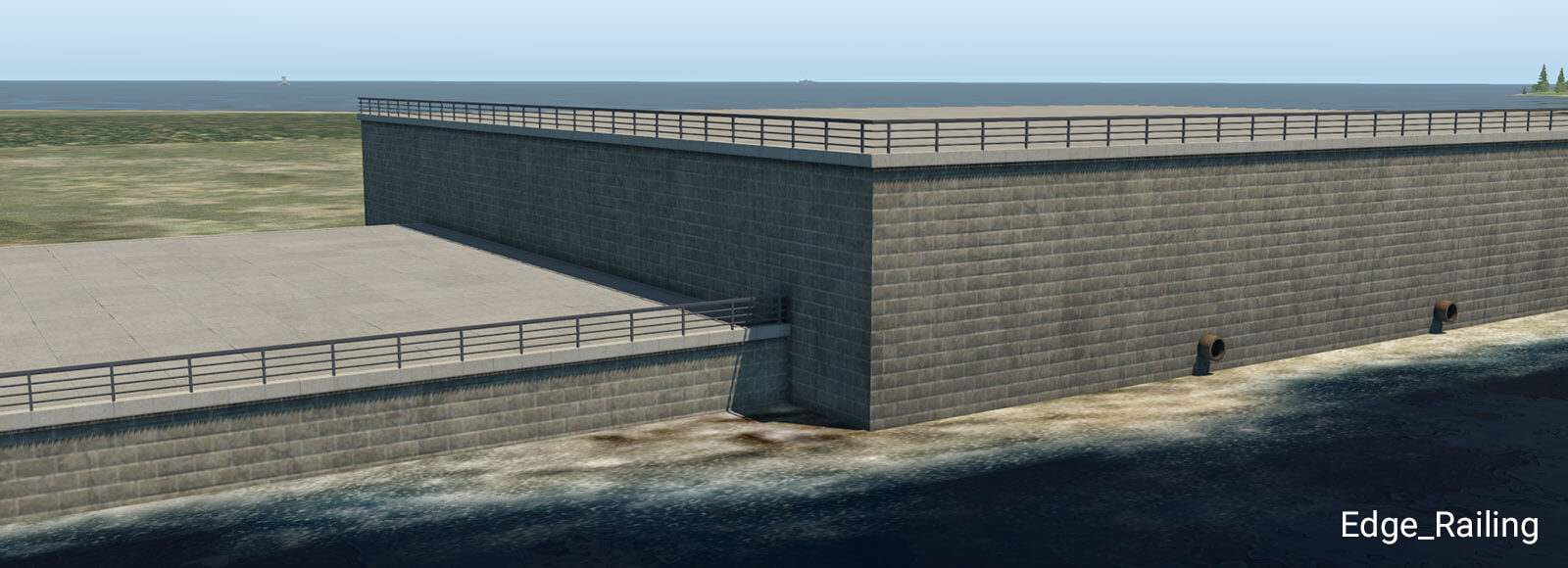
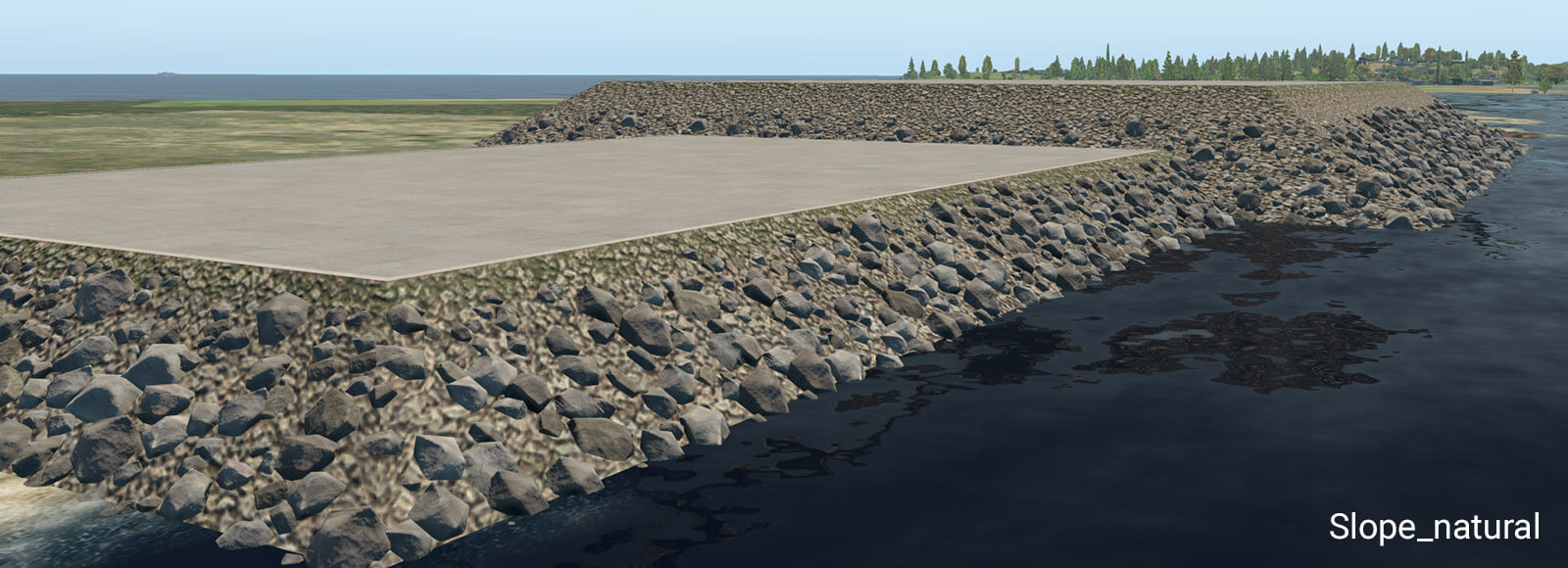
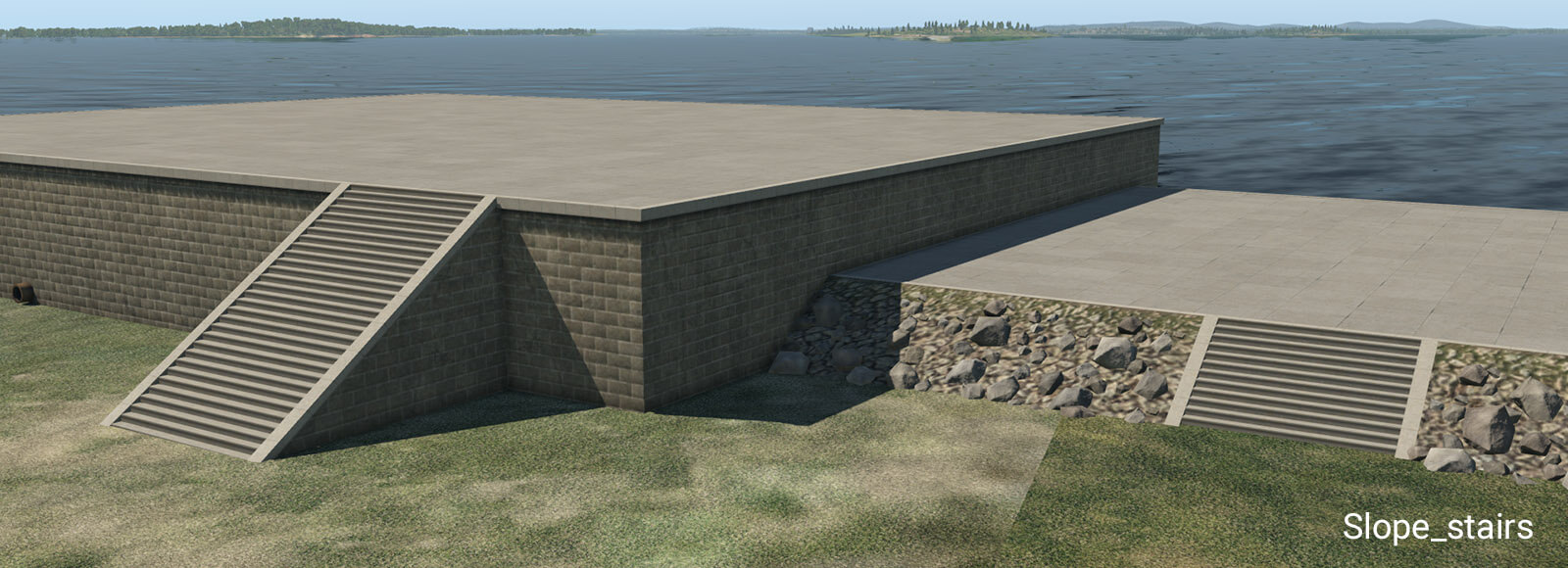
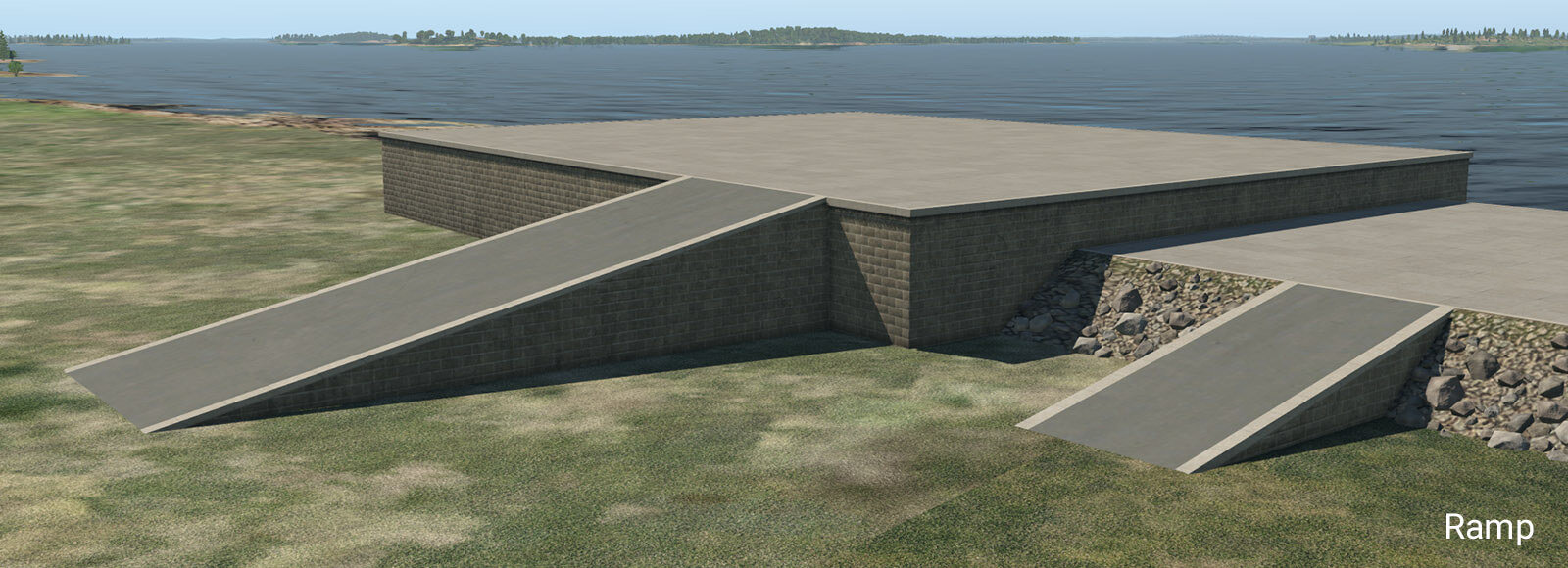
This facade can form a typical stone embankment with vertical and sloped walls. It is designed for height ranges between one and ten meters, with a one-meter step. This facade must be placed as a closed polygon, with manually selected walls. Due to the nature of the facade system, there are some design limitations. The basic vertical wall works without any specific limitations. However, sloped walls (like natural slope, stairs or ramp) don’t work very well in conjunction with sharp angles at corners. When the corner angle is 90 degrees and more, there is an obvious distortion in UV texture mapping. This may look silly, especially with the greater height so try to avoid very sharp corner angles when using these walls. For the same reason, it is not recommended to switch between vertical and sloped walls at corners. This works best with straight polygon segments.
Stairs have exactly the same angle as the natural slope so they can be seamlessly placed in between sloped walls.
The ramp is designed for straight segments. Do not use it at sharp corners, because it has very obvious UV texture deformations due to its shape.
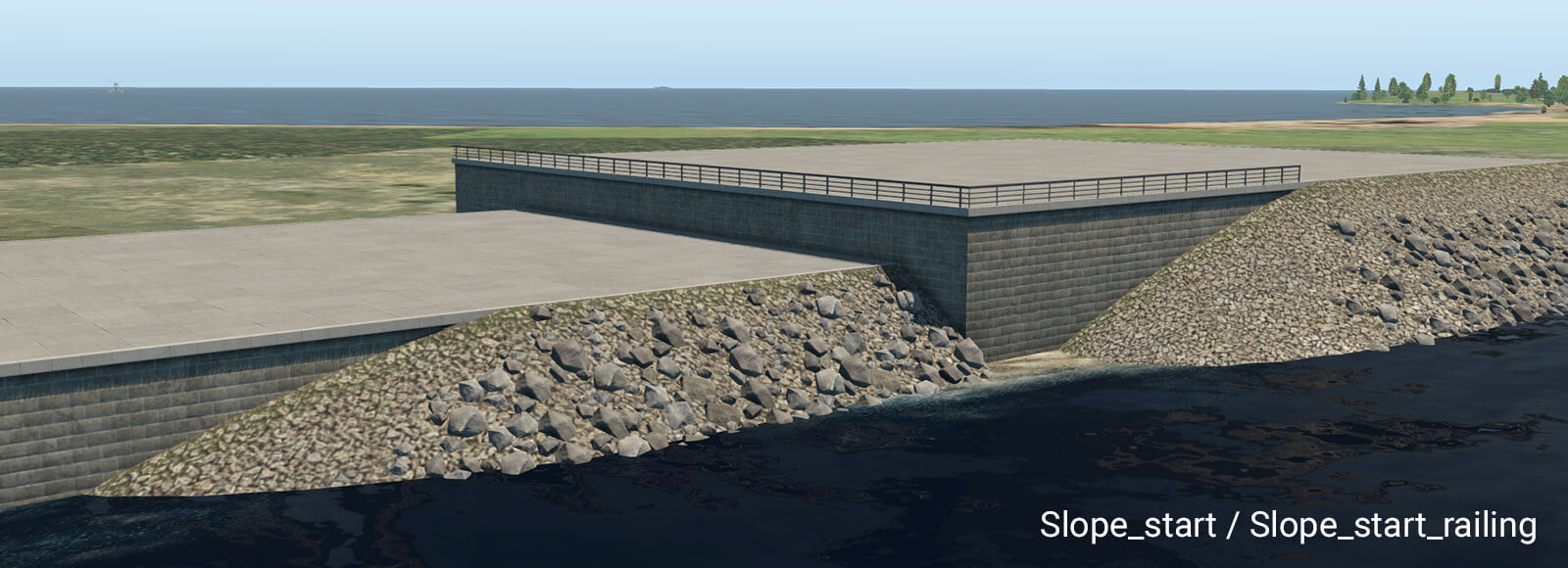
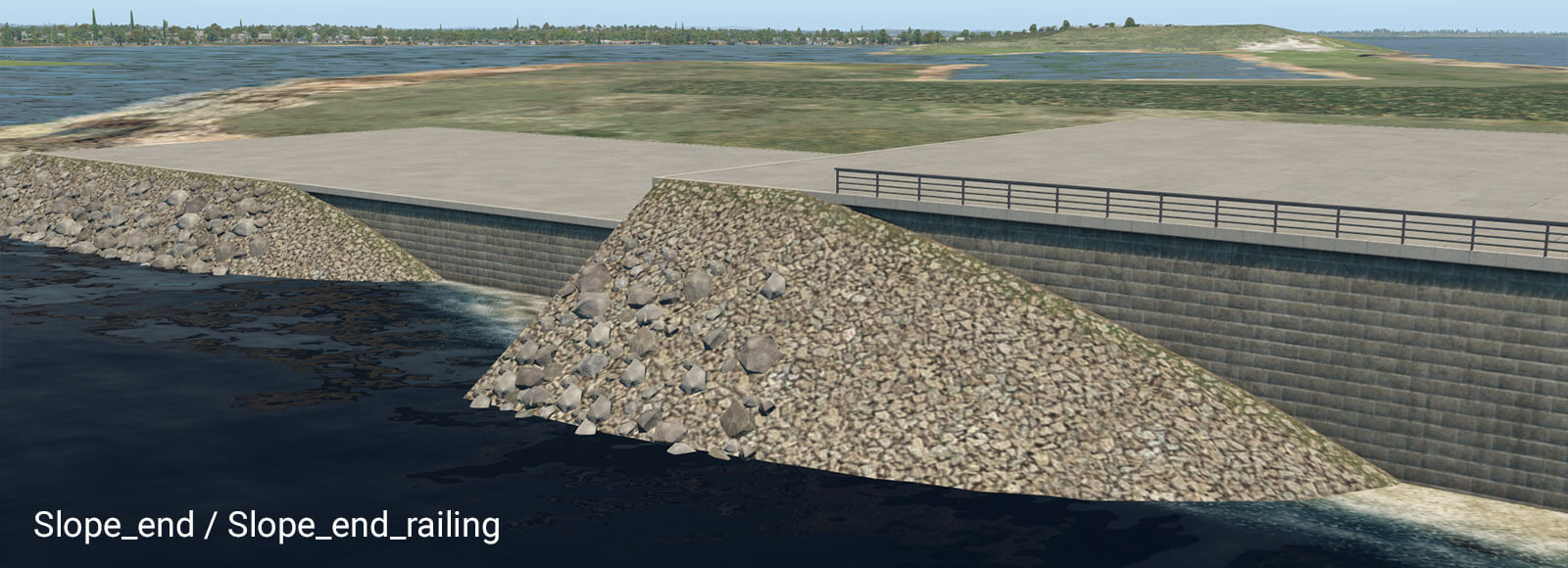
These pairs of transition segments are useful when you need a smooth transition between the vertical wall and natural slope. They work best in straight segments also. Note they require some length to be shown properly. A safe length is about 32 meters. However, you can make the transition segment much longer. If you do so, “Slope_start” will appear at the very beginning of that segment, and “Slope_end” will appear at the very end.
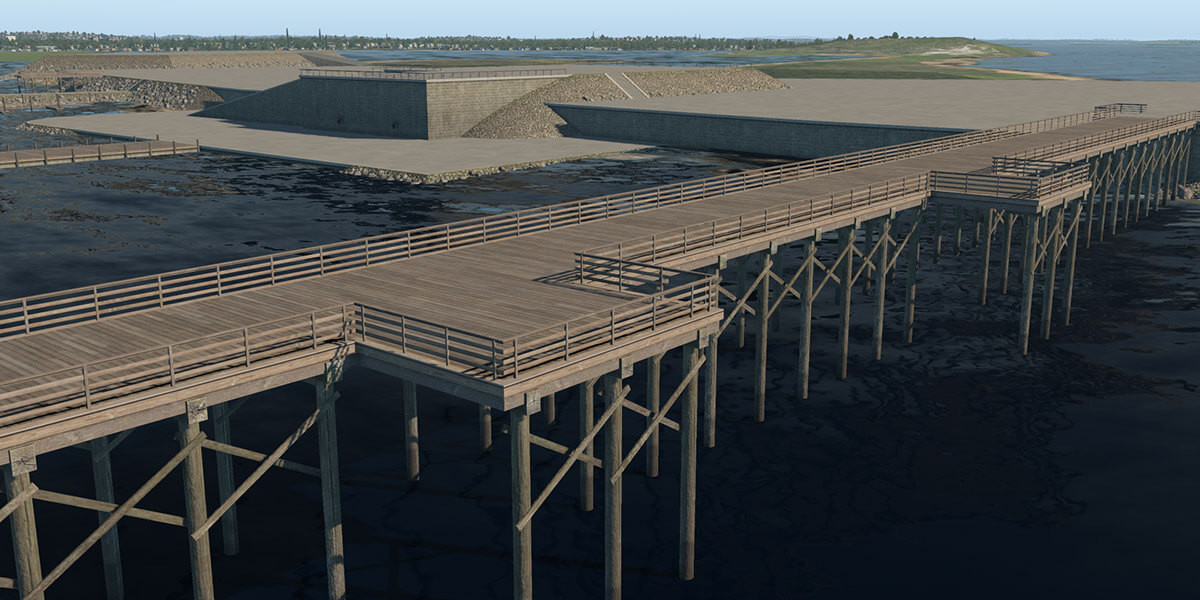
pier_wooden_01.fac
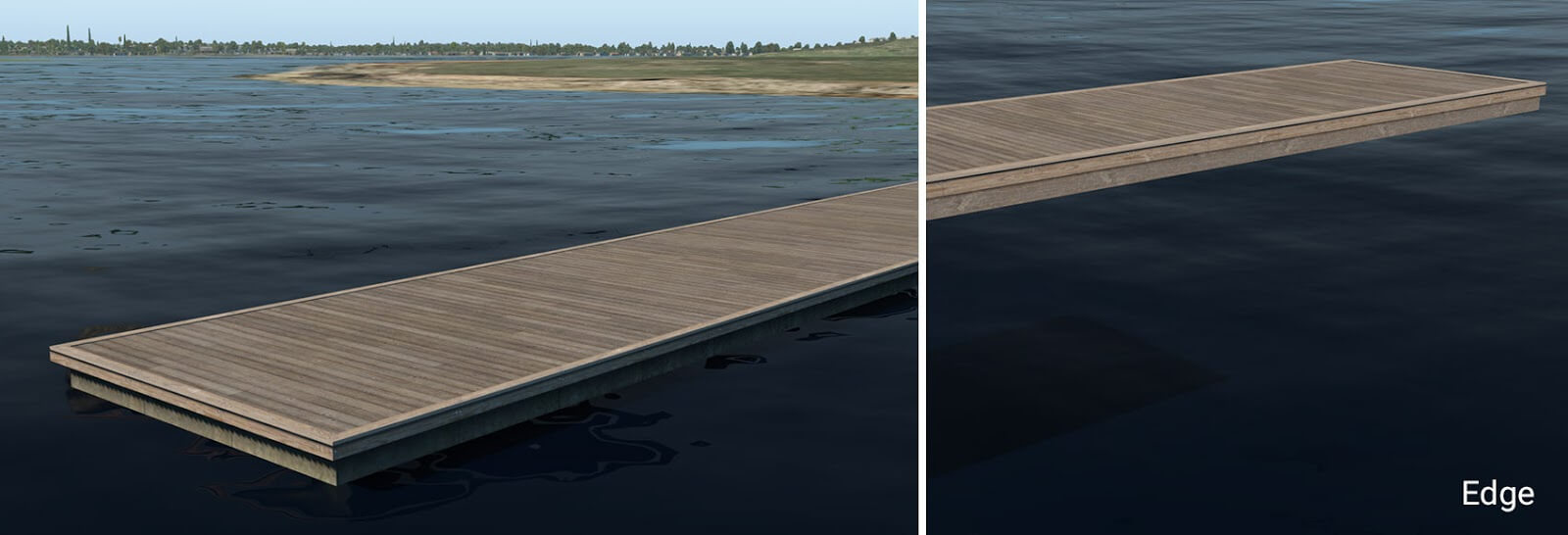
This facade is used in the main for the creation of typical wooden piers or docks. It works for the same height ranges (1 to 10) plus an additional 0.6 meters. This is because 60 cm is a typical height for small floating piers. The two lowest height levels (0.6 and 1 meter) look like a floating pier and the rest form a pier on pylons.
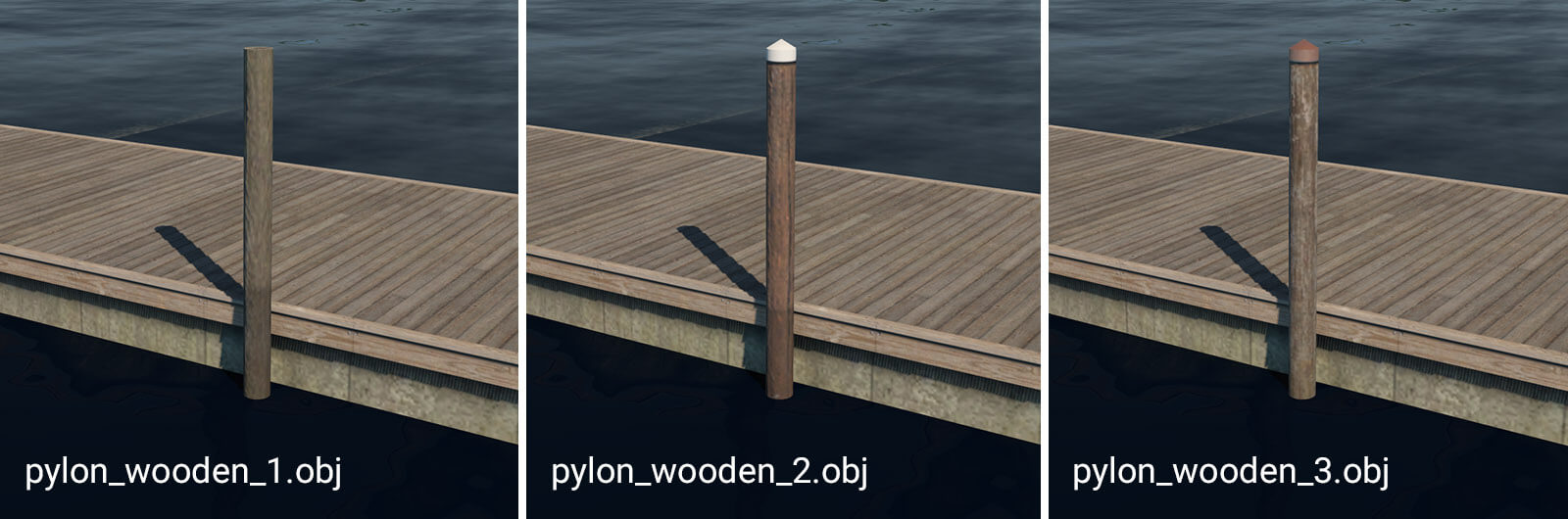
pylon_wooden_X.obj
These pylons can be placed manually. They are useful in combination with floating wooden piers. For more convenient placement, they are also available as strings: “pylons_row_wooden_X.str”.
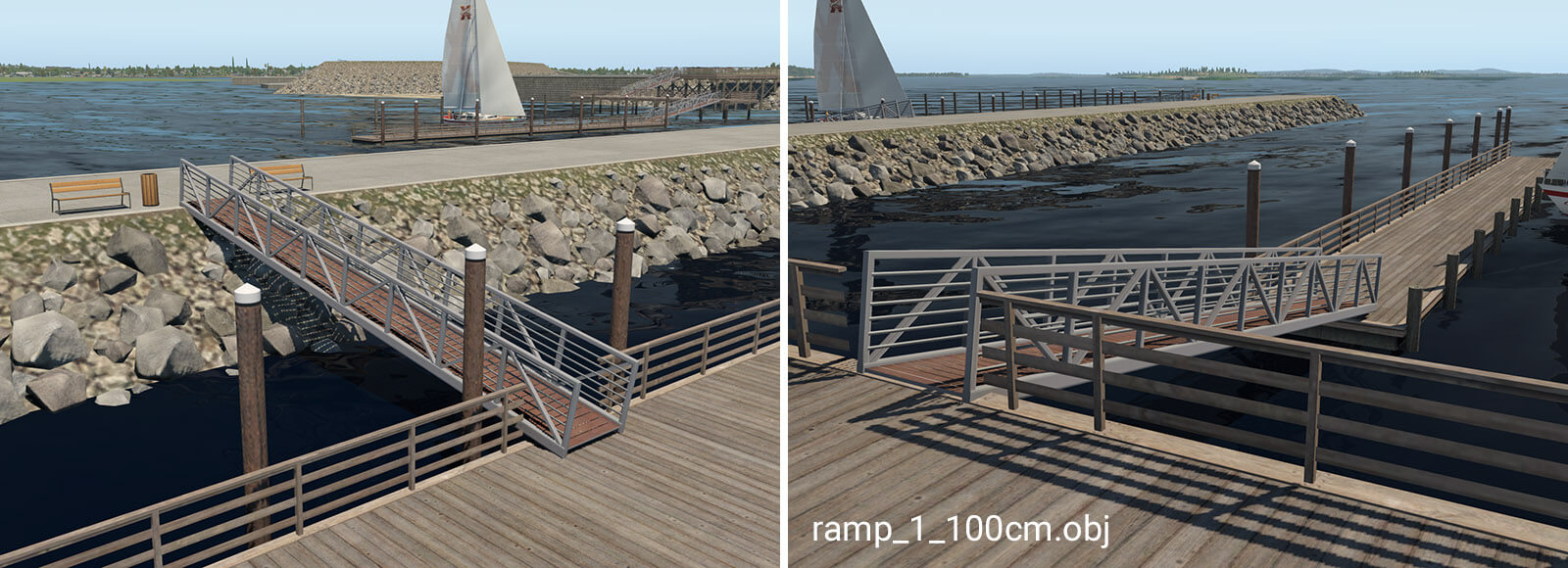
ramp_1_100cm.obj
The ramp object is available in seven different variants. It is designed for connections between levels with differing heights. The numbers in the name mean the total height of the ramp (e.g. ramp_1_240cm is 2.4 meters high). This object is available with heights of 140, 240 and 340 which is necessary in conjunction with the special 60cm pier. For proper placement of the ramp above the pier, artists must use the ‘Set MSL’ feature in WED, with the appropriate altitude above sea level.
X-Plane has two vacuum systems per airplane, one for the pilot side instruments and one for the copilot side instruments. By default, the suction is generated by pumps driven by the engine, so it is dependent on your engine RPM.
Two additional sources of vacuum are available in X-Plane 11.30:
an aircraft can be equipped with a venturi tube instead, a very simple system found on vintage aircraft, where the suction is generated by the air going through a venturi tube placed on the fuselage, so it is effected by airspeed and propeller slipstream
an electric backup pump that can be switched on and provide suction when the engine pumps fail
Engine-driven vacuum pumps – single engine
X-Plane simulates the vacuum system for physical vacuum-driven gyros as follows:
There are two vacuum systems: One for the pilot instruments, one for the copilot instruments.
If you have no copilot instruments, then no problem: The second vacuum system goes unused, like it is not even there.
Each vacuum system has exactly one vacuum pump, which may be failed by the instructor.
For a single-engine airplane, that one engine turns both pumps… and if your plane has only one system, no problem! Just don’t specify any instruments as “Copilot”, which would have them use the second system.
The low-vacuum annunciator goes off if EITHER vacuum system runs low, but if you want to make an instrument that tracks WHICH system has run low on pressure, the simply use these datarefs
For airplanes that have TWO vacuum pumps on ONE system, we just don’t simulate that, just like we don’t simulate both the tire and innertube inside it… we only simulate the actual outgoing force that you see. So, for the dual-vacuum pump planes that have two pumps on one system, simply fail the vacuum pump in the failure list to take out BOTH pumps, since that will remove the pumping pressure from the system.
Engine-driven vacuum pumps – twin engine
For a multi-engine airplane, engine one turns the pump on system 1, engine 2 turns the pump on system 2… and if your plane has only one system, no problem! Just don’t specify any instruments as “Copilot”, which would have them use the second system.
If the vacuum system is set up in a way that both engine pumps pull from a common vacuum manifold, check the “vacuum systems cross-tied” in Plane Maker on the Systems page. In this case, with both engines running you will have plenty of suction, and in case of an engine failure, the one remaining pump will be enough to sustain suction at most power settings, but maybe not at idle RPM.
Electric backup
If your aircraft is equipped with an electric backup pump, you can use the dataref
sim/cockpit2/switches/standby_vacuum_pump
to turn on the electric pump in case the engine-driven pump has failed.
Venturi for Vintage aircraft
If you check the “venturi vacuum system” in the Systems page of Plane Maker, X-Plane will not run the engine driven vacuum pumps and instead place a venturi tube on the fuselage, like you’d see in an old a straight-tail 172. That venturi tube will be affected by the airspeed and the propeller slip stream, so you will first see it generating suction during the engine runup, when there is plenty of airflow from the propeller.
X-Plane 11.30 offers to equip planes with preconfigured autopilots, in addition to the many configurable options of previous X-Plane versions. Some of the available autopilots come with additional features. Read More
Comments Off on Preconfigured autopilots and other autopilot changes in 11.30
The X-Plane autopilot works with cascaded PID controllers. Tuning the PID controllers for your aircraft is key to having a smooth working autopilot. This article explains the parameters you can set in Plane Maker, and how to tweak them.
Starting with X-Plane 11.30, it is possible to equip high-flying aircraft with an oxygen system rather than or in addition to the pressurized cabin, to allow realistic black-out behavior also with unpressurized aircraft. Read More
X-Plane simulates ice accumulation on your aircraft that will affect your performance greatly. X-Plane also simulates a wide variety of systems that can prevent the accumulation of ice on various surfaces (anti-ice), or get rid off ice that has accumulated (de-ice). Read More
Comments Off on The X-Plane Anti- and De-Ice systems
X-Plane simulates governors for constant speed propellers that can have various failure modes. Depending on the type of engine/propeller combination on the aircraft, the behavior of the governor in case of an engine failure will be different. X-Plane 11.30 allows you to select the type of governor to simulate, to accommodate a wide range of different engine types. Read More
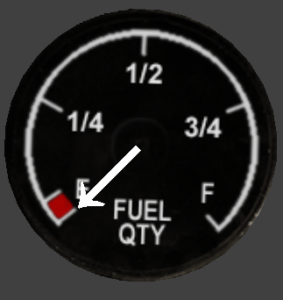
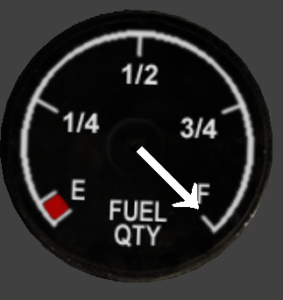
Let’s suppose we are simulating a faulty fuel quantity gauge for a historic plane, the “Arbitria Examplus Mk 2”. The plane had a real fuel capacity of 200kg, but showed empty when there was 5kgs left, and full when there was 190kg in the tank. Plane Maker will provide the sim with the real fuel capacity while this animation will provide the visual realism.
The fuel gauge, at frame 1The fuel gauge, at frame 2
First, we model a gauge and a needle, initially pointed up at 0 degrees. The texture used here is fuel_round_GA.png, included with Plane Maker.
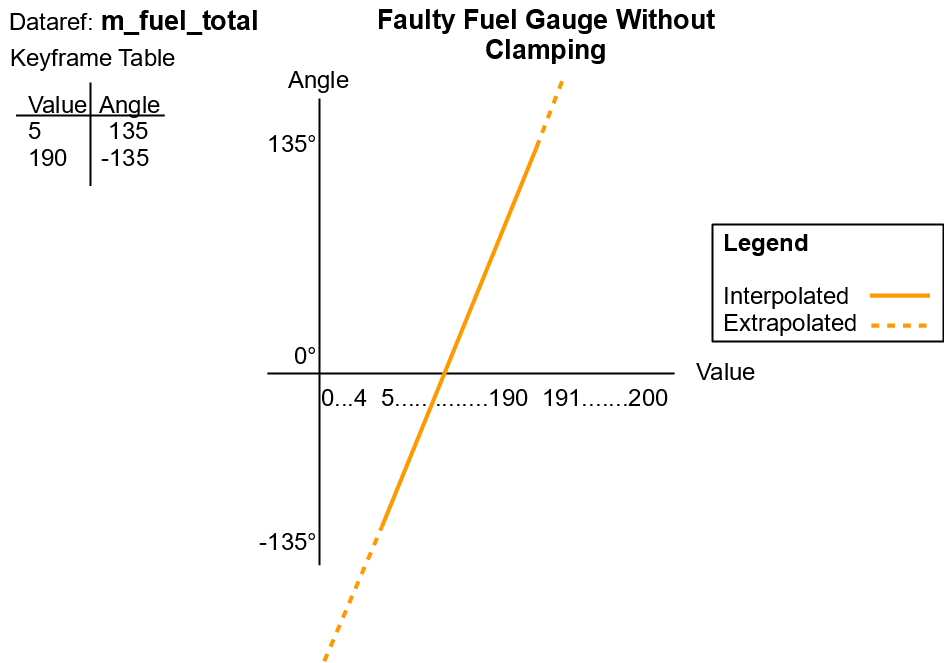
We are using the dataref sim/flightmodel/weight/m_fuel_total. The first keyframe shows the gauge’s arrow at the empty position (135 degrees), and will be shown when the dataref is 5. The second keyframe shows the gauge’s arrow at the full position (-135 degrees), and will be shown when the dataref is 190. Here is a chart of this data as a table and graph of the arrow’s rotation over changes in m_fuel_total.
The faulty fuel gauge animation, in table and graph form, without clamping
When sim/flightmodel/weight/m_fuel_total is between our explicitly created keyframes (5 and 195) it will animate as intended because X-Plane is interpolating between these known keyframes. But, beyond that X-Plane will guess by using the first two keyframes for when the dataref is less than 5 and the last two keyframes when the dataref is greater than 190. (In this case we only have two keyframes, both are used to “look ahead” and “look behind”). This is called extrapolation. Extrapolation is useful as it allows you to animate just a portion of the range of motion and allow X-Plane to do the rest. It is convenient and allows you to think of animation as incremental motion (10 degrees CCW every change of .1) that builds up dynamically rather than one large static motion that will be broken up into chunks.
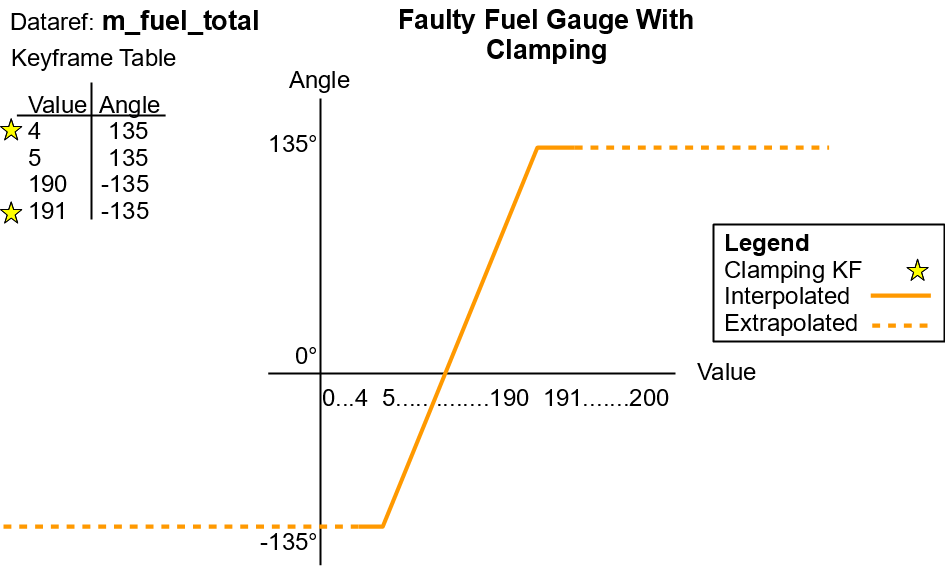
There is currently a problem with our animation! We want the needle to stop moving when it reaches 5kg or 190kg, but this keyframe table will allow X-Plane to keep rotating the needle for all of 0 to 200. X-Plane’s extrapolation cannot be turned off; instead we must trick it using “clamping keyframes”. By using another keyframe on each side of the keyframe table with the same angle and a smaller and larger value respectively, we can “clamp” the animation and stop incorrect extrapolation from ruining our fuel gauge!
The faulty fuel gauge animation, in table and graph form, without clamping
You can see in the graph how the extrapolation is now fooled! By giving X-Plane a flat line to follow, rather than a sloped one, past certain values the angle of rotation will stay the same no matter the dataref’s value. The value for the dataref simply has to be less than or greater than each side, but many artists use a convention to quickly identify what is a clamping keyframe. Some use -999999,999999 or adding or subtracting 1 off each end as we’ve done in this example. Both work equally well, so the real value is in being consistent. Though rarely used, it is also possible to clamp only one side of a keyframe table.
Although a rotating gauge was used, this principle applied to translations as well.
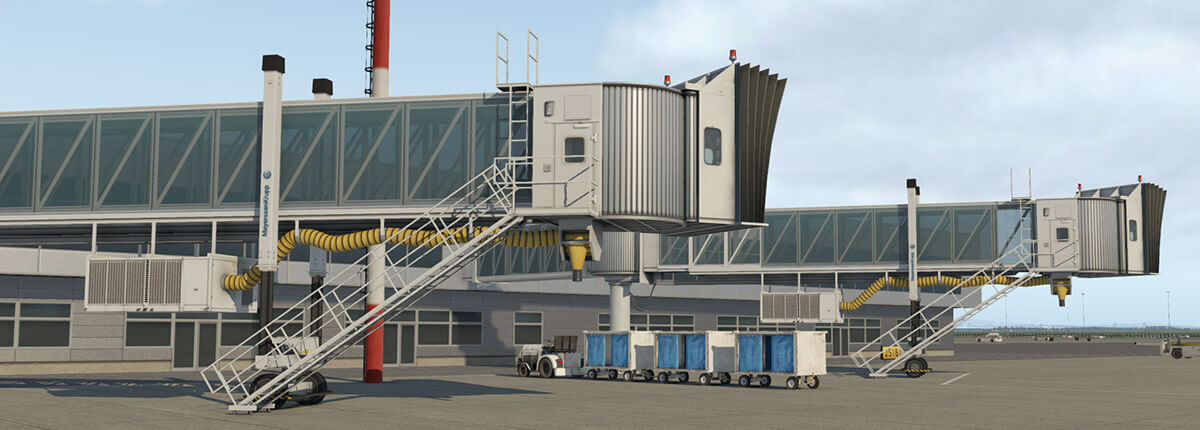
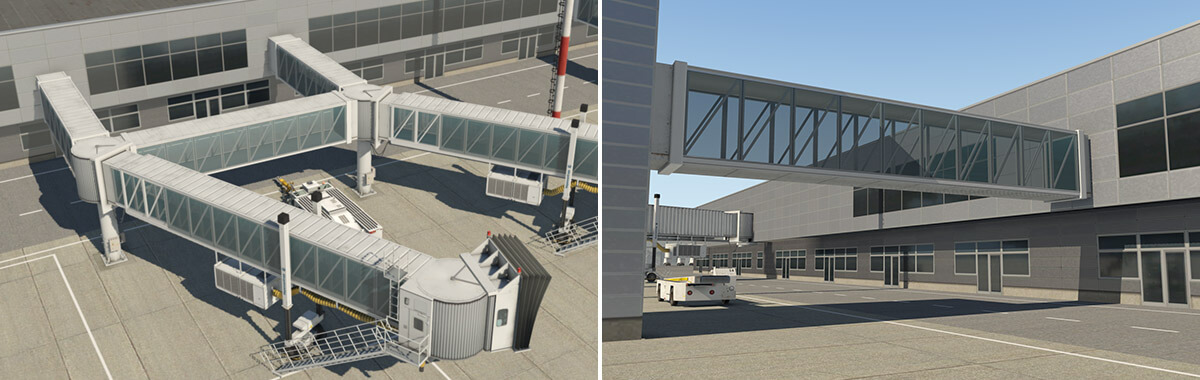
X-Plane 11.20 introduces a new object-type for the construction of jetways. Technically this is a facade, and therefore in WED appears as an unclosed chain of segments. This approach allows the artist to customize jetway shape and position for almost any real world situation. Moreover, it is very easy to use, and you can build a custom jetway literally with just a few steps.
The jetway system can handle an unlimited number of extension bridges in a single chain, and telescopic bridges in a range of 11 to 40 meters. By design, jetways are always horizontal.
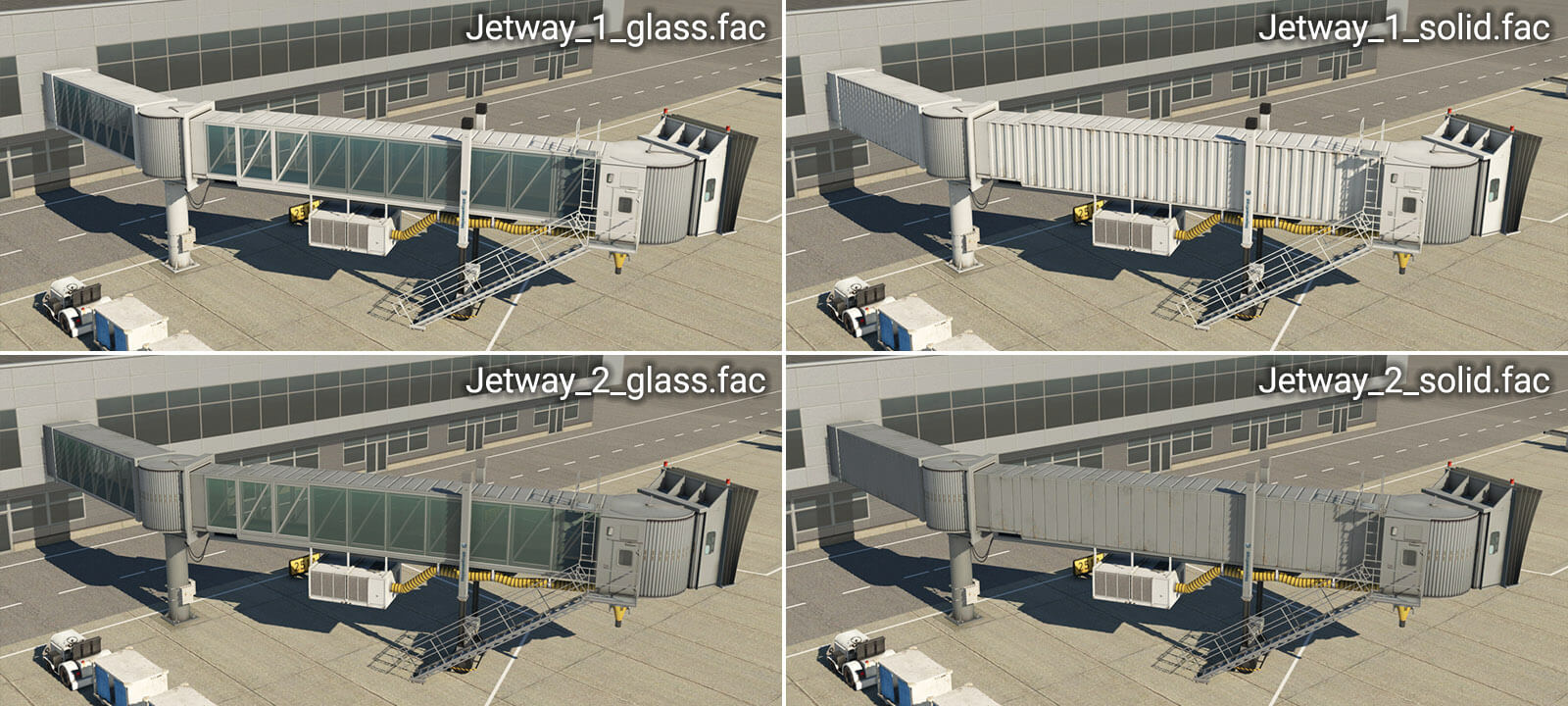
Jetway objects can be found in the WED library hierarchy at “lib/airport/Ramp_Equipment/Jetways“. Currently, four jetway-types are available:
Basic steps for the creation of jetways
1 – Pick the jetway facade and place the chain of nodes
2 – Set the “Pick Walls” checkbox
3 – Select the desired vertex (wall-type) for each segment
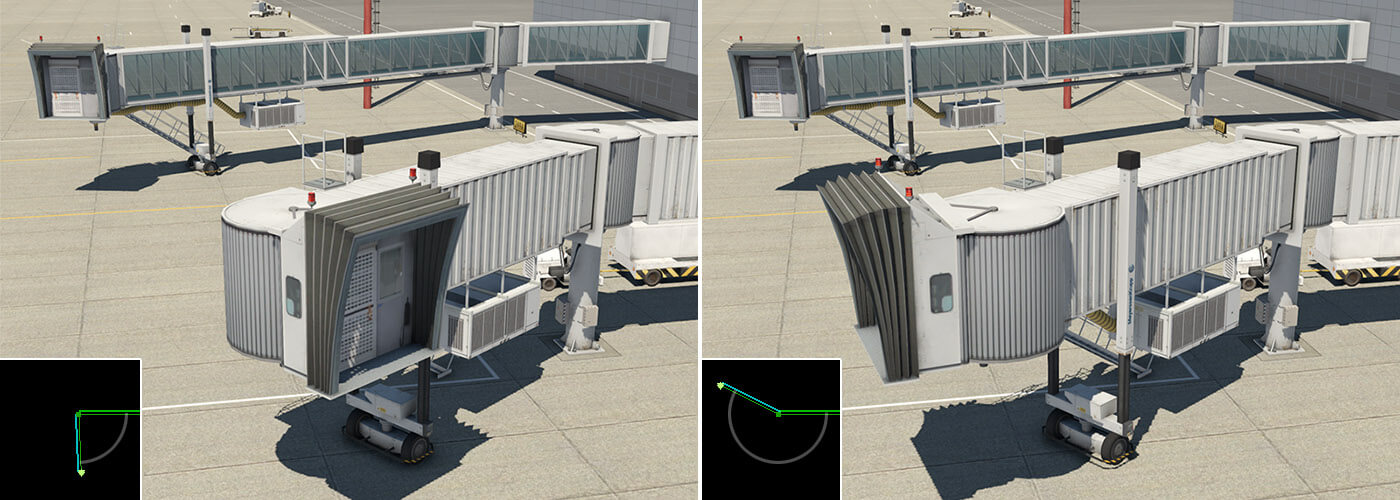
In a typical use case, the artist would place a chain with three segments (four nodes). Order of placement is important – always start at the terminal wall. (Note: Ctrl+Shift+R may be used to reverse the chain-order.) The artist must always set the vertex (wall type) manually. X-Plane can’t guess which segment is a telescopic tunnel and which is an extension or a cabin, for example.
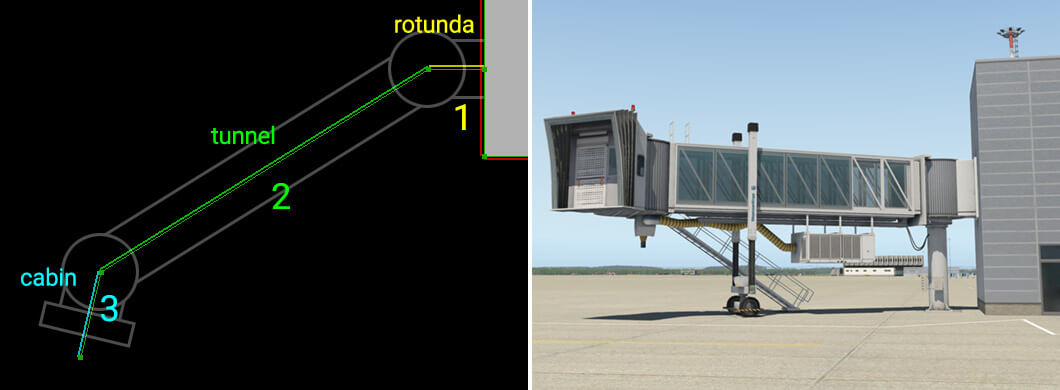
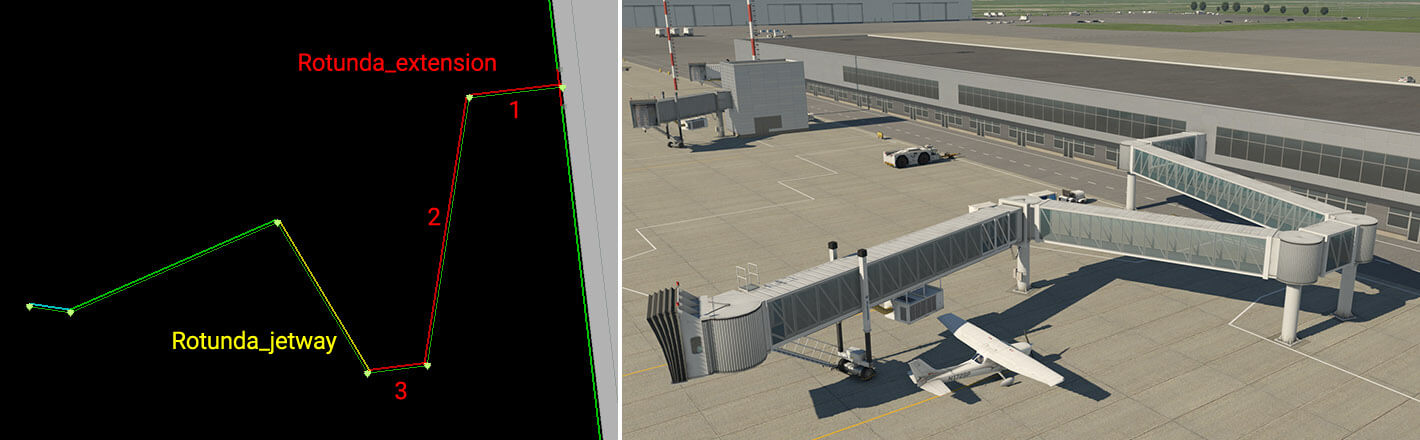
A typical jetway is always made of three parts. The first segment, rotunda, represents the connection between the terminal building and pivot point of the jetway bridge. The second segment represents the main body – a telescopic tunnel. The last segment must be the cabin.
Diagram illustrating the basic concept:
The parts of a jetway in detail
Segment 1 – Rotunda
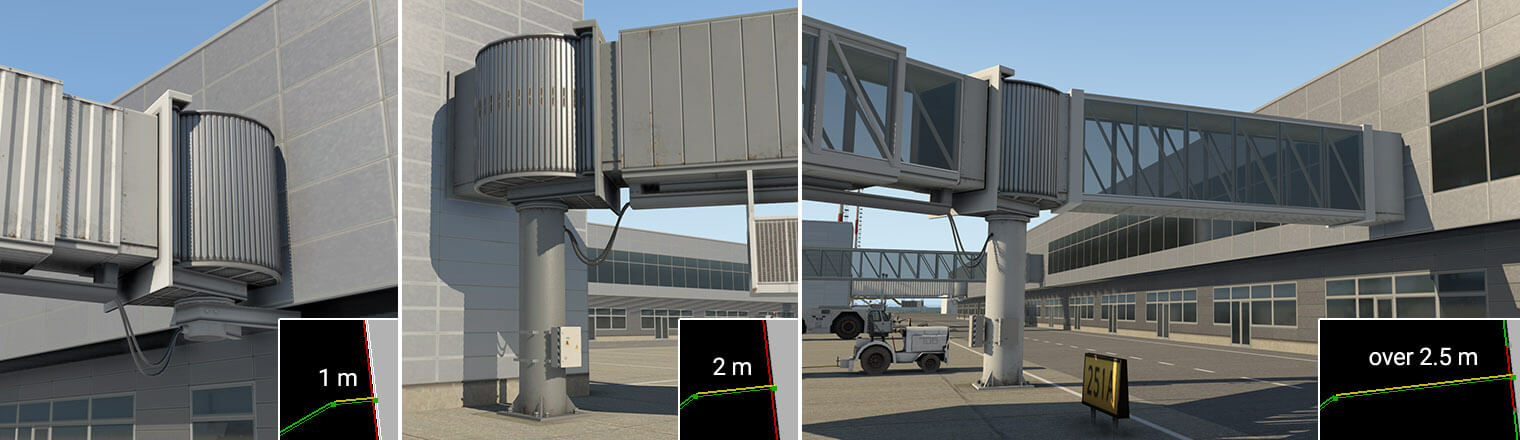
The first segment (Rotunda) may be as long as required. However, the visual representation depends on its length. If it is very short (such as 1 meter), only a rotunda without a column appears on the wall of the terminal. If its length is between 1.5 and 2.5 meters, it shows the usual short neck and rotunda with a column, which is most common in the real world. With a length of more than 2.5 meters, and up to a maximum of 60 meters, it forms an extension bridge, ending with the rotunda and the column.
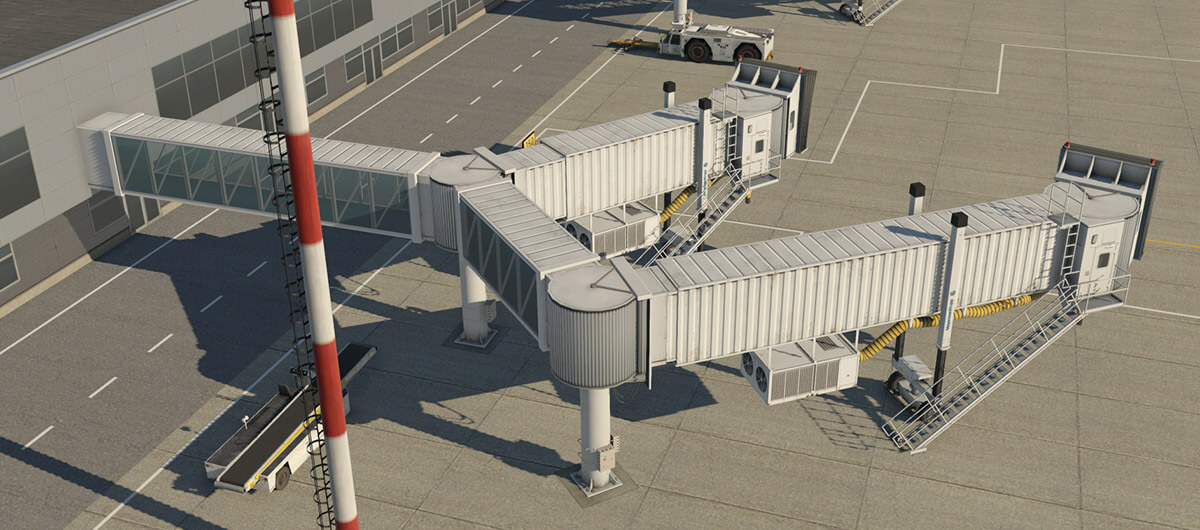
You may place multiple extension bridges in one chain to build very complex structures.
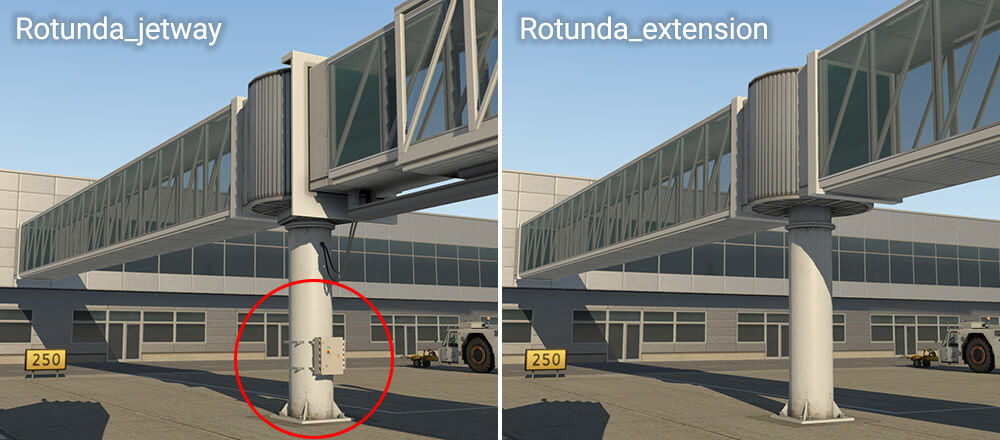
Rotunda segments have two vertex (wall-type) options – “Rotunda_extension” and “Rotunda_jetway“. Both behave exactly the same way, and the difference is merely visual. “Rotunda_jetway” has some electrical installation and is intended for use with telescopic tunnels, while “Rotunda_extension” is intended for additional extension segments.
Segment 2 – Tunnel
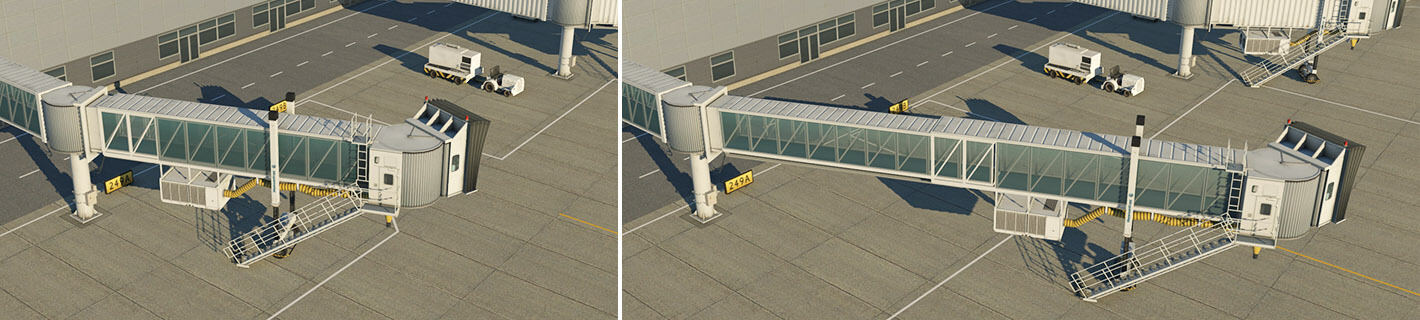
This segment must be at least 11 meters long and there are two options here. Artists may select the “Tunnel_parked” vertex (wall type) which is probably best solution for most situations. This automatically ensures proper selection of the telescopic bridge in retracted, or parked, positions. “Tunnel_parked” has some advantages for potential replacement with dynamic jetways at some point in future.
However you may also pick a specific length of tunnel, and construct it in an extended position. In this situation, the vertex name itself controls the extension range. For example, vertex “Tunnel_17-27.5m” would be suitable for lengths in the range of 17 to 27.5 meters.
Segment 3 – Cabin
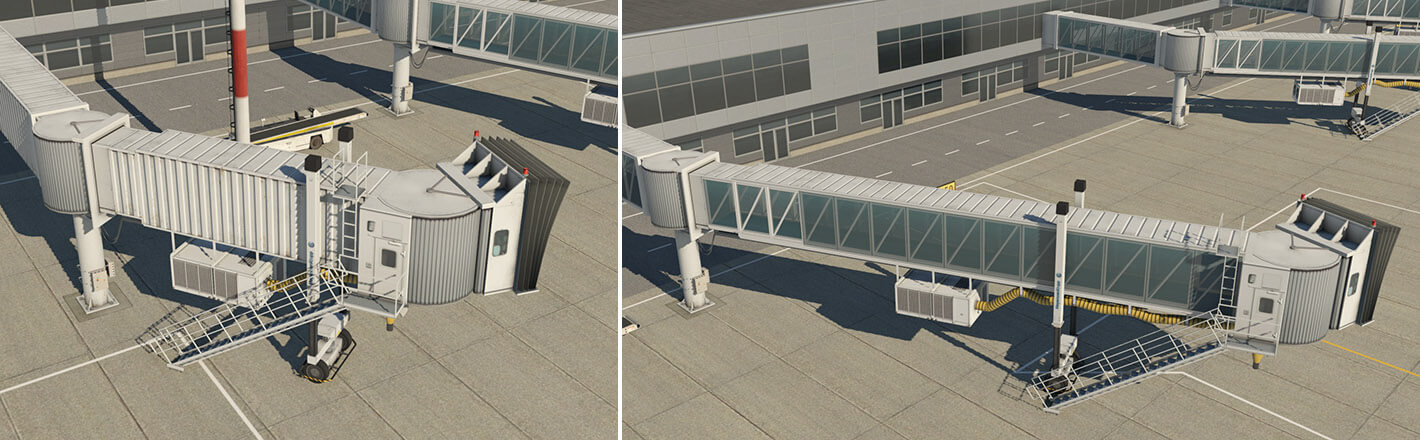
This is the final segment in a jetway chain. There is only one option for this segment – “Cabin“. The segment length isn’t important, but keep it in a reasonable range. The cabin object is always displayed at the beginning of the segment. The angle of rotation of the cabin should be approximately in the range illustrated below.
Special Segment – Connection
There is a special vertex (wall-type) named “Connection“. It works the same way as “Rotunda_..” but without the rotunda object itself. You can use this for connections between existing rotundas, or simply between buildings.
Useful hints
– Artists may combine different facades (white, gray, solid, and glass) to achieve, for example, a glass bridge with solid jetway tunnels.
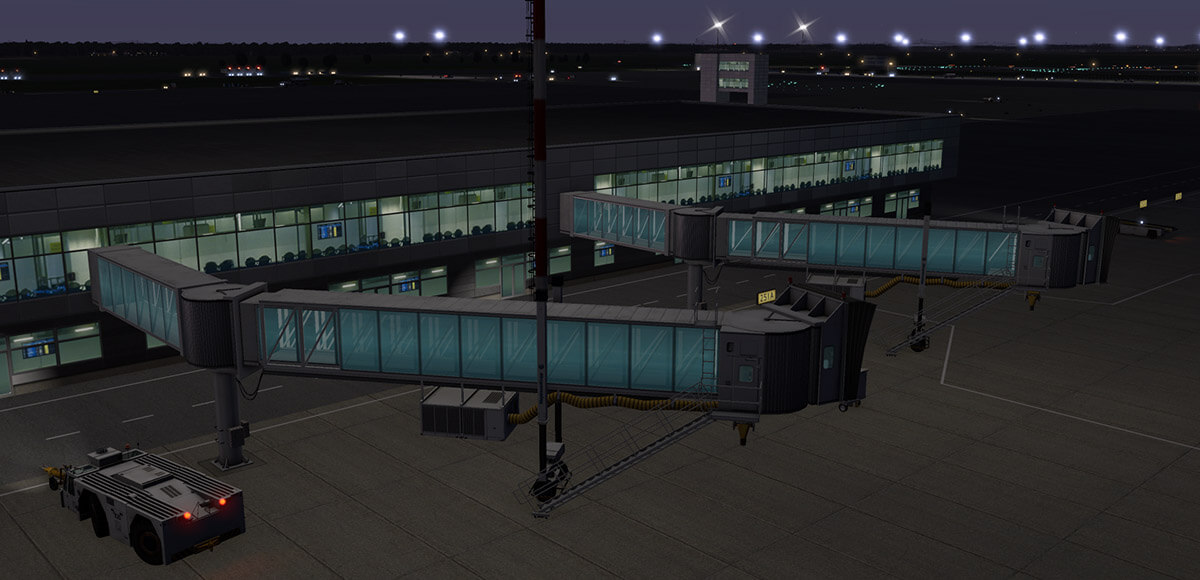
– Glass versions of extension bridges sometimes have issues with transparency. Please DO NOT file a bug, as this is a known limitation of the rendering engine. There is no guarantee the correct draw order will be achieved from all view angles with all objects. Typically you may not see a neighboring extension bridge through a transparent extension. You will also not see a user-aircraft, or dynamic shadows.
FMOD Events are controlled by parameters – input variables that are sent into the FMOD sound engine by X-Plane. Besides the standard built-in FMOD parameters, X-Plane supports two other categories of parameters: cone parameters and DataRef parameters.
Cone Parameters
X-Plane supports two cone parameters:
xpevent_rel_heading (range is -180 to 180).

xpevent_rel_pitch (range is -90 to 90).
These parameters give the relative bearing of the listener to the event in the coordinate system of the event. The typical use would be to attenuate volume based on the relative bearing to form a sound cone.
An event’s orientation is inherited from the aircraft it is attached to, and modified by the Eulers (psi, theta, phi) in the .snd attachment file.
DataRef Parameters
X-Plane supports the use of any dataref (built-in or plugin-provided) as a parameter. Specific single indices of arrays can be accessed by appending “[0]” (or some other subscripting number) to the end of the dataref name, just like in OBJ animation.
FMOD events can also use wild-card sound parameters. These work by using [*] as the index to the dataref. When you do this, the event reads the index from the dataref that is specified in the .snd file via the PARAM_DREF_IDX directive.
The motivation for wild-card parameters is to re-use a very complex event (e.g. an engine sound) more than once, using the wild-card scheme to access different array indices for different sound instances. For example, in a twin engine aircraft you might use PARAM_DREF_IDX 0 for the left engine and PARAM_DREF_IDX 1 for the right engine, then use sim/flightmodel2/engine/XXXX[*] for your datarefs.